
Grok Image Concepts for Music Visuals
Select an enabled model, enter text, review the credit quote, then download finished clips from History and add your music and timed lyric overlays in an external editor.
Create and edit images with Grok in RapLyrics. Move from text-to-image generation to natural-language editing in one place. Check the selected model for reference image options and available controls, then review the results and download visual clips for your music project.
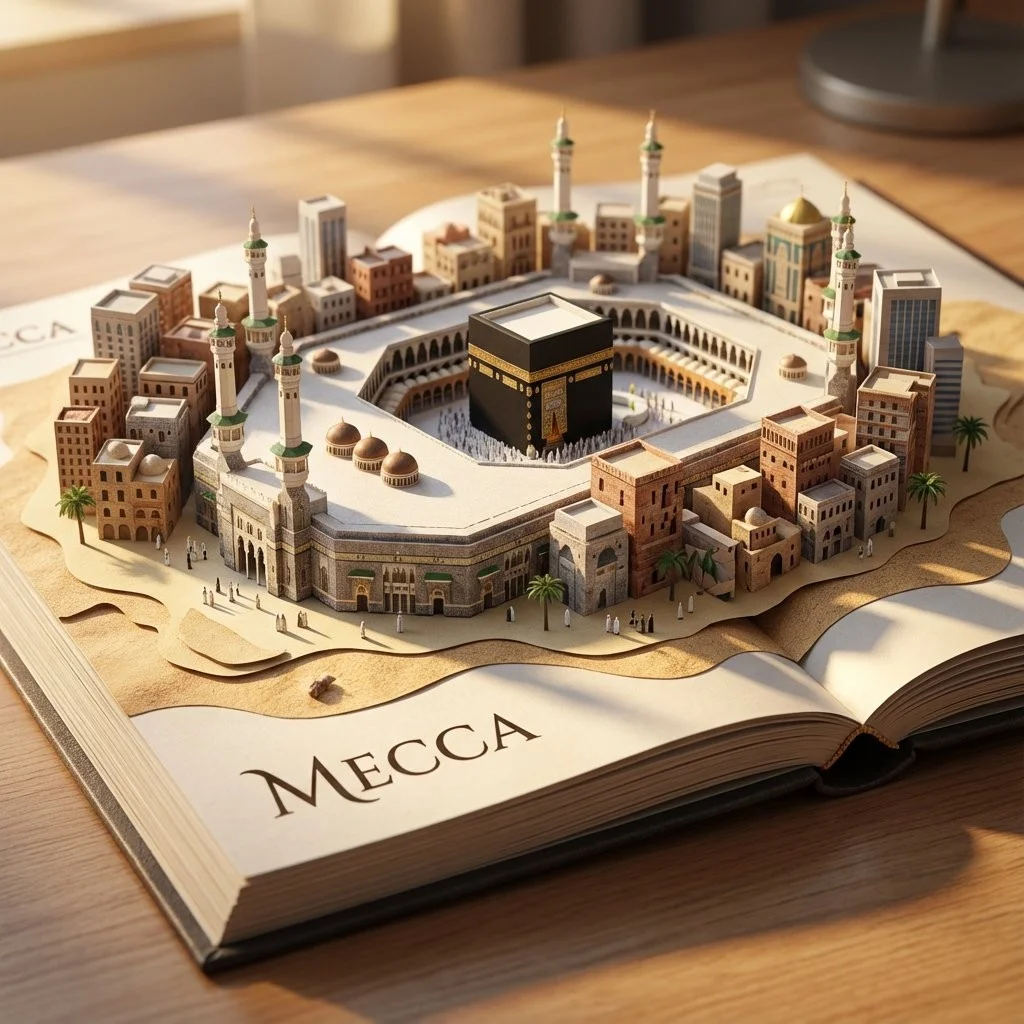
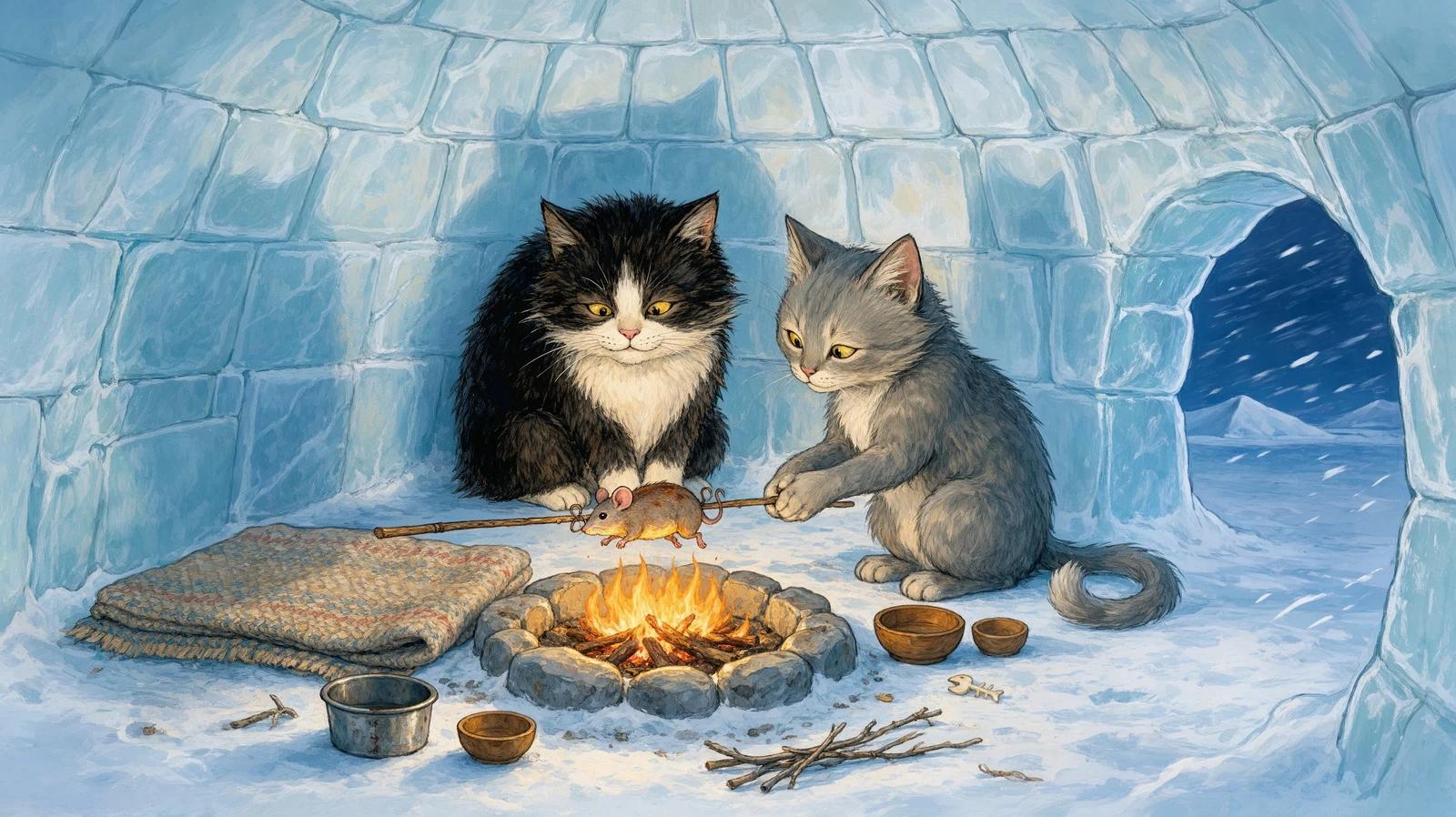
Verified prompt
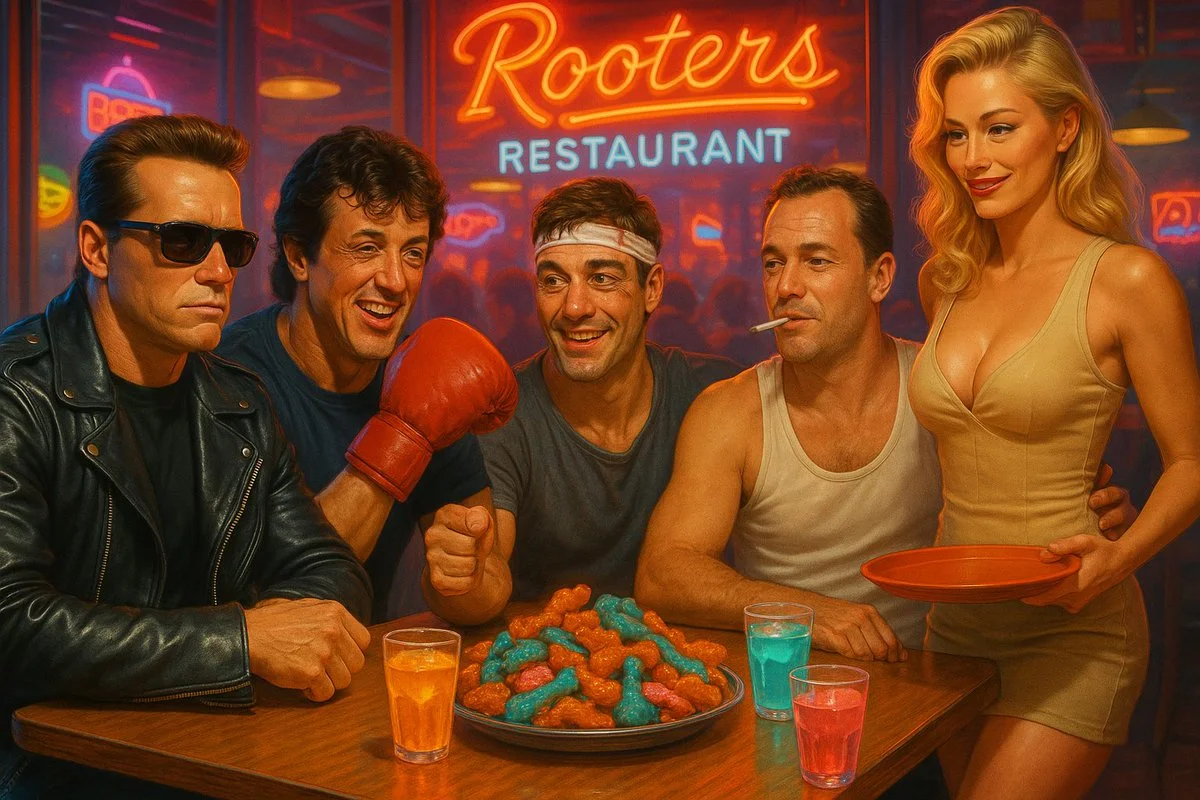
Verified prompt
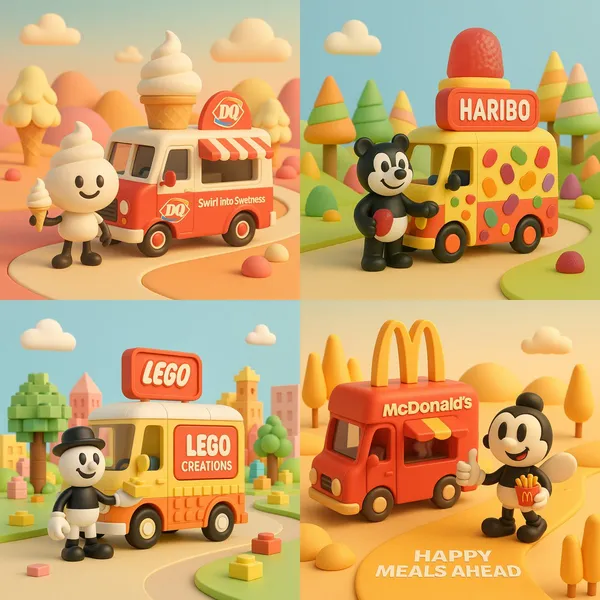
Imagine [CHARAKTER 1] and [Charakter 2] casually sitting together at a table in a [FAST FOOD BRAND] restaurant. The atmosphere is relaxed and light-hearted, with the two characters engaged in an amusing or deep conversation over trays of food and drinks.
Imagine [CHARAKTER 1] and [Charakter 2] casually sitting together at a table in a [FAST FOOD BRAND] restaurant. The atmosphere is relaxed and light-hearted, with the two characters engaged in an amusing or deep conversation over trays of food and drinks.
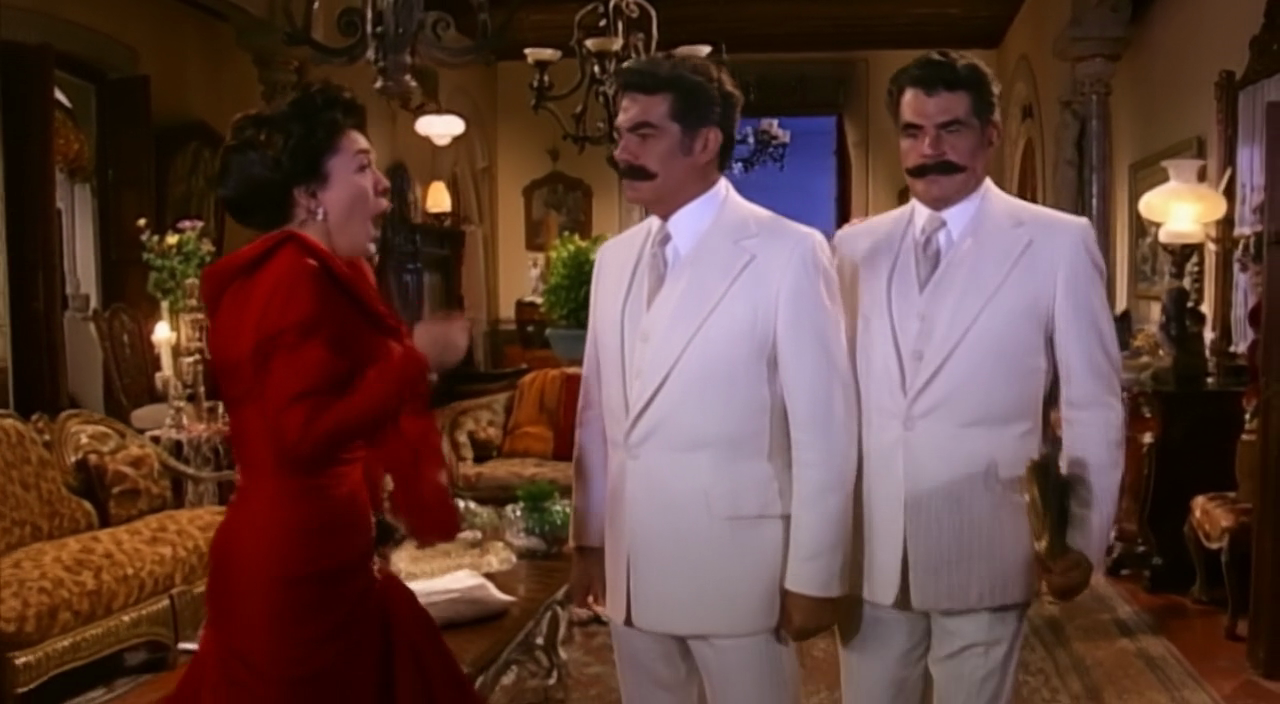
Verified prompt
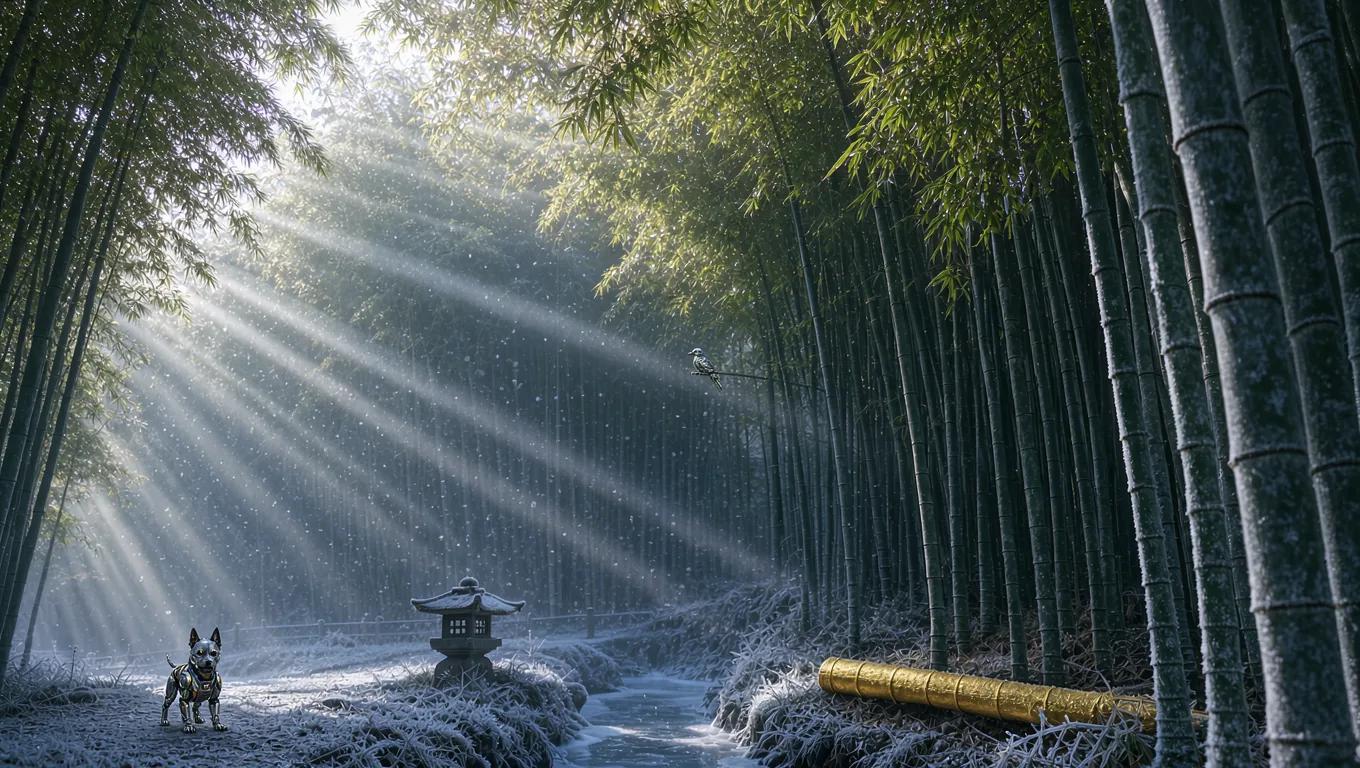
Verified prompt
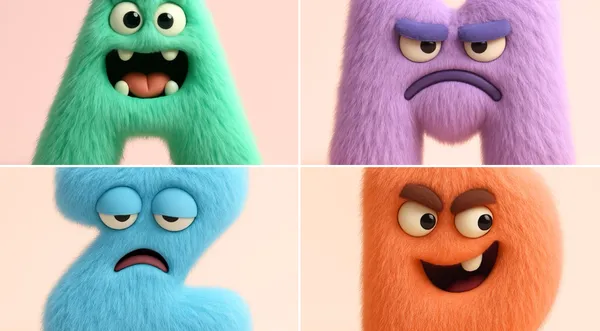
Verified prompt
ghly realistic 3D render of the letter [A-Z] designed as a full-body fluffy monster. The letter shape itself is the creature’s body — no separate head or limbs. The eyes, mouth, and other monster features are embedded naturally into the letter form. The monster expresses a [mischievous / grumpy / shy / joyful / sleepy / surprised / confident] emotion through its eyes and mouth shape. The texture is dense, soft, and realistic fur, with subtle volume and shadow. The color palette is bold but clean — solid vibrant tones like mint, lilac, sky blue, or coral (avoid rainbow gradients). Studio lighting on a simple pastel background. No hats, no party props — just a minimal, high-quality character design with playful expression.
ghly realistic 3D render of the letter [A-Z] designed as a full-body fluffy monster. The letter shape itself is the creature’s body — no separate head or limbs. The eyes, mouth, and other monster features are embedded naturally into the letter form. The monster expresses a [mischievous / grumpy / shy / joyful / sleepy / surprised / confident] emotion through its eyes and mouth shape. The texture is dense, soft, and realistic fur, with subtle volume and shadow. The color palette is bold but clean — solid vibrant tones like mint, lilac, sky blue, or coral (avoid rainbow gradients). Studio lighting on a simple pastel background. No hats, no party props — just a minimal, high-quality character design with playful expression.
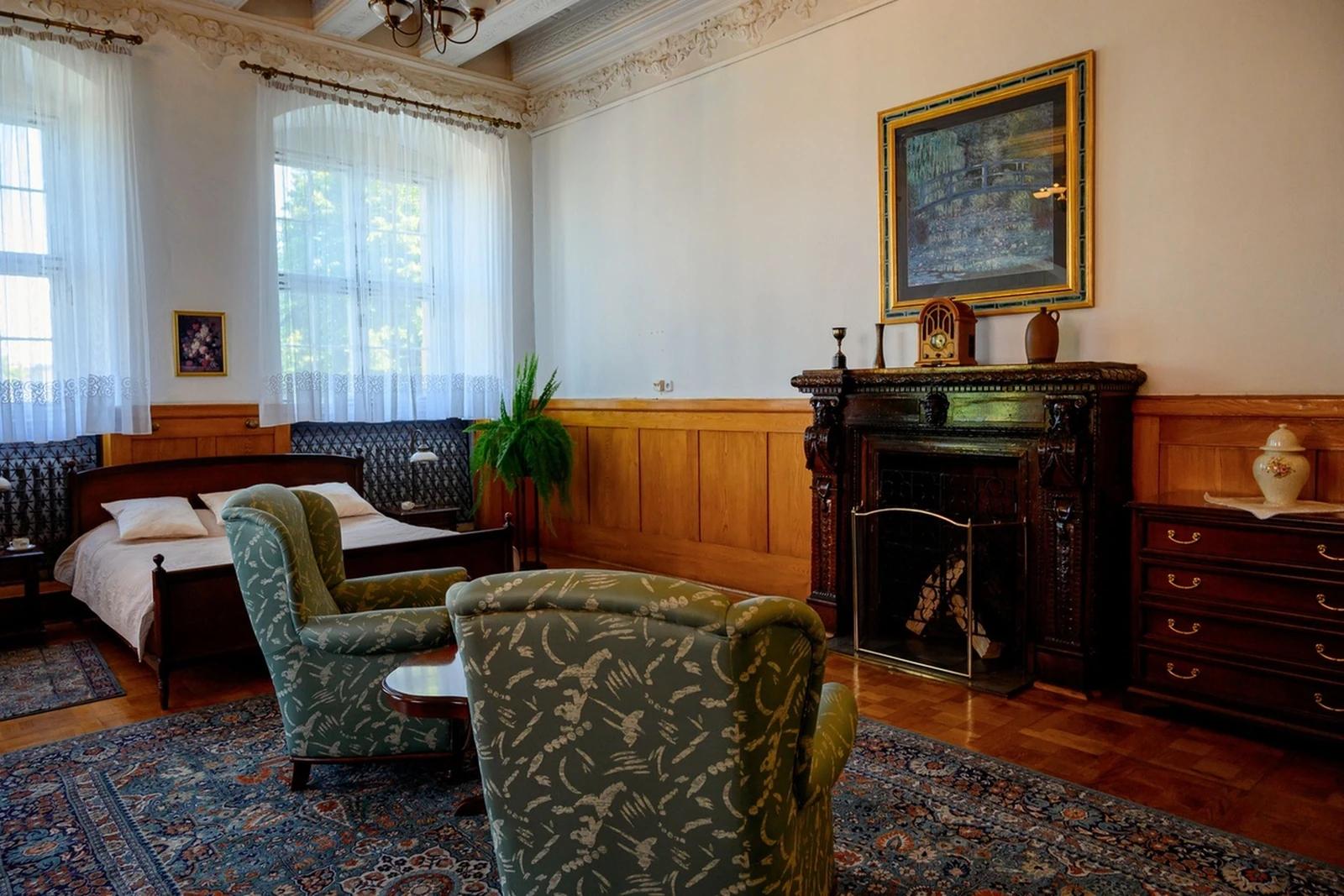
Verified prompt
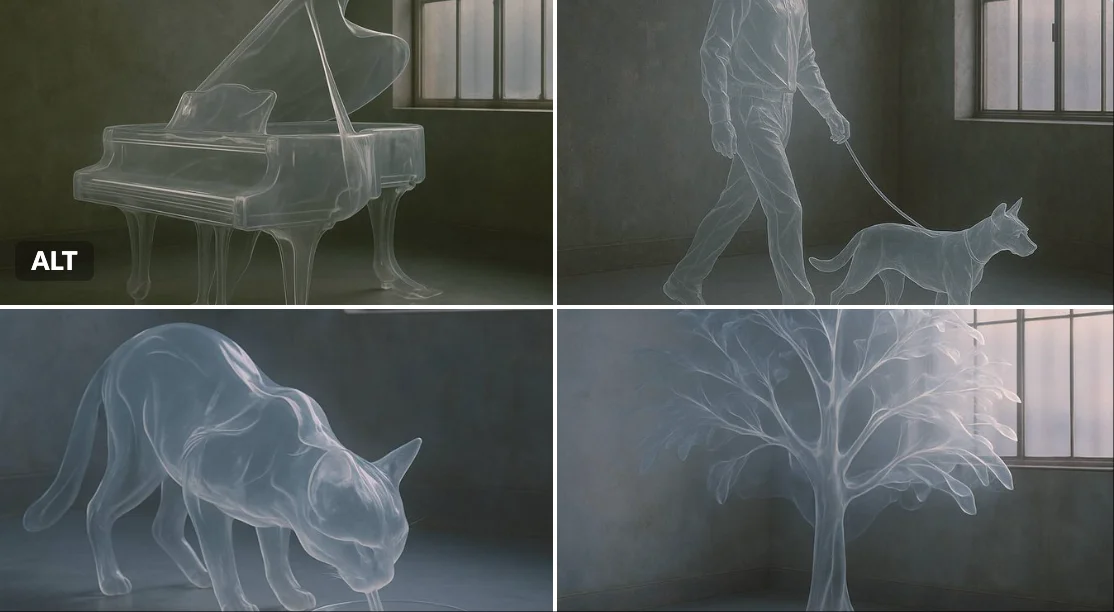
Verified prompt
A hyper-realistic photograph of a [SUBJECT] entirely made from a single, semi-rigid transparent material that drapes and folds like sheer plastic or molten glass. The object is fully recognizable in shape, yet ghostly and fluid, as if sculpted from air and frozen in motion. Set in a moody, industrial interior with aged concrete walls and diffused daylight from metal-barred windows. The lighting gently highlights the reflections, edges, and flowing curves of the transparent form. Dreamlike, minimalist, surreal design aesthetic.
A hyper-realistic photograph of a [SUBJECT] entirely made from a single, semi-rigid transparent material that drapes and folds like sheer plastic or molten glass. The object is fully recognizable in shape, yet ghostly and fluid, as if sculpted from air and frozen in motion. Set in a moody, industrial interior with aged concrete walls and diffused daylight from metal-barred windows. The lighting gently highlights the reflections, edges, and flowing curves of the transparent form. Dreamlike, minimalist, surreal design aesthetic.
Verified prompt
Verified prompt
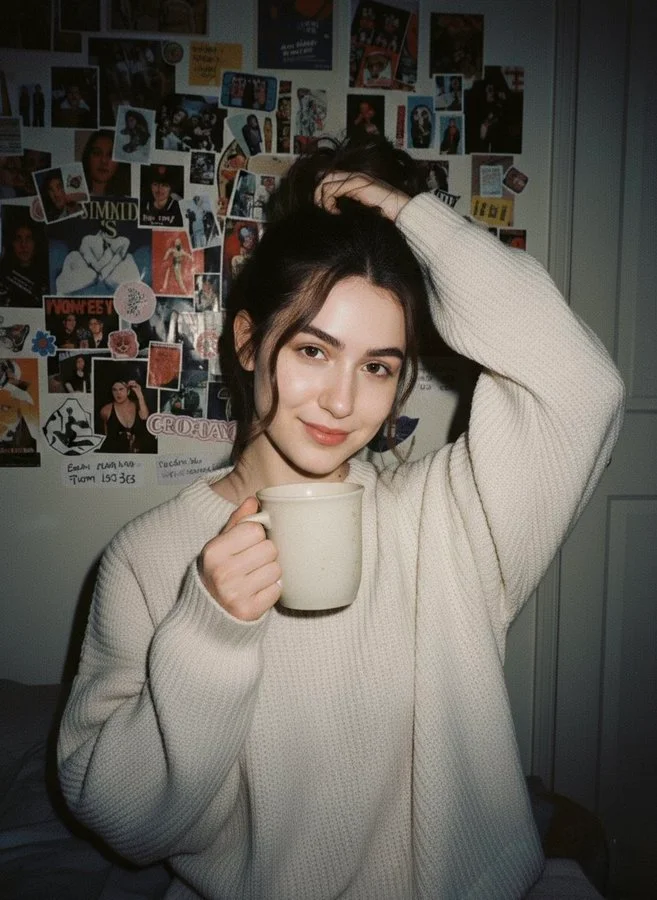
Cinematic shot of [detailed character description], shot from [camera angle], [lighting type], [color palette], shot at close range, 35mm film grain, wide angle lens, f2.0 bokeh, shallow depth of field.
Cinematic shot of [detailed character description], shot from [camera angle], [lighting type], [color palette], shot at close range, 35mm film grain, wide angle lens, f2.0 bokeh, shallow depth of field.
Verified prompt
Verified prompt
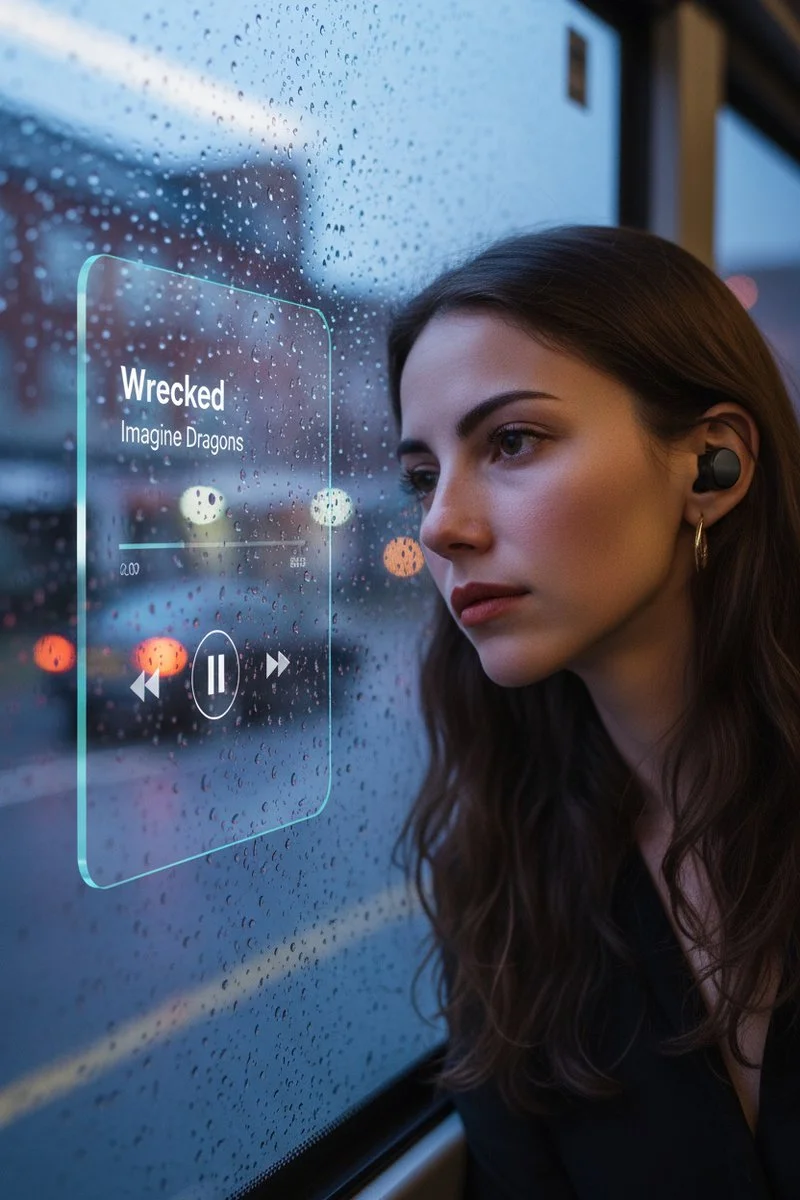
{ "promptDetails": { "description": "A prompt to *create a new scene* by placing a subject (based on a reference photo) into a new atmospheric background, then overlaying a music UI.", "styleTags": [ "Aesthetic Edit", "Cinematic", "Scene Compositing", "Glassmorphism" ] }, "subjectReference": { "source": "[UPLOADED IMAGE]", "description": "Use this image *only* as a reference for the subject's face, hair, and appearance. Do *not* use its original background." }, "scene": { "background": { "setting": "the window on the bus is sad, troubled, sorrowful", "details": "This is the *new* environment the subject must be placed into, completely replacing the original background." }, "subject": { "description": "The young man whose appearance is defined by the `[UPLOADED IMAGE]`.", "pose": "his head resting gently against the bus window", "focus": "Subject is in sharp focus, fully integrated into the new background." } }, "overlayObject": { "type": "Floating Glassmorphism Music Player UI", "relationshipToEnvironment": "the UI is **perfectly flush and physically attached** to the same plane as the bus window glass, **not floating**, not screen-space.", "transform": "the UI matches the *exact same rotation and perspective* as the window surface. If the window tilts, the UI tilts identically with correct foreshortening.", "surfaceInteraction": "subtle, realistic reflection and slight refraction through glass, extremely thin glassmorphism panel integrated *into* the window surface.", "components": { "songTitle": "Wrecked", "artistName": "Imagine Dragons", "position": "mounted on the bus window glass at the middle-left region of the frame (not floating)." } }, "technicalStyle": { "aspectRatio": "1:1", "photographyStyle": "Cinematic Portrait, Realistic Compositing", "camera": { "shotType": "Medium Shot or Medium Close-Up", "angle": "Eye-level", "depthOfField": "Shallow, to blur the new background (bokeh)." }, "lighting": { "type": "Soft, Ambient, Moody", "description": "Lighting on the subject *must match* the lighting of the new background setting (e.g., rainy light through bus window, soft shadow gradients)." }, "color": { "palette": "Muted, cinematic color grading." } }, "audioDevice": { "type": "subtle in-ear wireless earbuds", "fit": "naturally seated in both ears with correct realistic skin contact", "color": "matte black or dark neutral tone", "consistencyNote": "no cable, no bulky gaming headset" }, "moodReinforcement": "earbuds imply the sad music 'Wrecked - Imagine Dragons' is what the subject is listening to." }
{ "promptDetails": { "description": "A prompt to *create a new scene* by placing a subject (based on a reference photo) into a new atmospheric background, then overlaying a music UI.", "styleTags": [ "Aesthetic Edit", "Cinematic", "Scene Compositing", "Glassmorphism" ] }, "subjectReference": { "source": "[UPLOADED IMAGE]", "description": "Use this image *only* as a reference for the subject's face, hair, and appearance. Do *not* use its original background." }, "scene": { "background": { "setting": "the window on the bus is sad, troubled, sorrowful", "details": "This is the *new* environment the subject must be placed into, completely replacing the original background." }, "subject": { "description": "The young man whose appearance is defined by the `[UPLOADED IMAGE]`.", "pose": "his head resting gently against the bus window", "focus": "Subject is in sharp focus, fully integrated into the new background." } }, "overlayObject": { "type": "Floating Glassmorphism Music Player UI", "relationshipToEnvironment": "the UI is **perfectly flush and physically attached** to the same plane as the bus window glass, **not floating**, not screen-space.", "transform": "the UI matches the *exact same rotation and perspective* as the window surface. If the window tilts, the UI tilts identically with correct foreshortening.", "surfaceInteraction": "subtle, realistic reflection and slight refraction through glass, extremely thin glassmorphism panel integrated *into* the window surface.", "components": { "songTitle": "Wrecked", "artistName": "Imagine Dragons", "position": "mounted on the bus window glass at the middle-left region of the frame (not floating)." } }, "technicalStyle": { "aspectRatio": "1:1", "photographyStyle": "Cinematic Portrait, Realistic Compositing", "camera": { "shotType": "Medium Shot or Medium Close-Up", "angle": "Eye-level", "depthOfField": "Shallow, to blur the new background (bokeh)." }, "lighting": { "type": "Soft, Ambient, Moody", "description": "Lighting on the subject *must match* the lighting of the new background setting (e.g., rainy light through bus window, soft shadow gradients)." }, "color": { "palette": "Muted, cinematic color grading." } }, "audioDevice": { "type": "subtle in-ear wireless earbuds", "fit": "naturally seated in both ears with correct realistic skin contact", "color": "matte black or dark neutral tone", "consistencyNote": "no cable, no bulky gaming headset" }, "moodReinforcement": "earbuds imply the sad music 'Wrecked - Imagine Dragons' is what the subject is listening to." }
Verified prompt
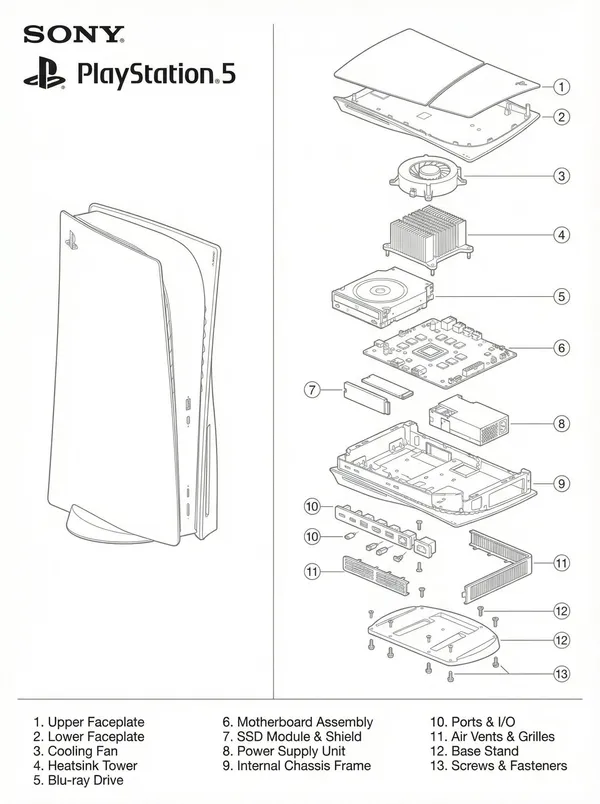
o-panel technical blueprint diagram in clean monochrome line-art, matching the exact layout of the provided PlayStation 1 schematic. On the left side, draw a full, intact Sony PlayStation 5 console in precise thin line-art on a white background. On the right side, draw a highly detailed, vertically exploded-view diagram of the PS5 showing each internal component separated into layers: outer shell panels, faceplates, cooling fan, heatsink tower, Blu-ray drive, motherboard, SSD module, power supply, internal frame, ports, vents, base stand, screws. Use consistent thin grey line-weight with no shading. Add numbered circular labels around each part, and include a matching numbered parts list at the bottom just like the reference blueprint. Place the SONY logo, PlayStation logo, and “PlayStation 5” text in the top left in the exact same position and style as the uploaded reference image. The entire artwork should mirror the composition, spacing, typography, and minimalist engineering-ma
o-panel technical blueprint diagram in clean monochrome line-art, matching the exact layout of the provided PlayStation 1 schematic. On the left side, draw a full, intact Sony PlayStation 5 console in precise thin line-art on a white background. On the right side, draw a highly detailed, vertically exploded-view diagram of the PS5 showing each internal component separated into layers: outer shell panels, faceplates, cooling fan, heatsink tower, Blu-ray drive, motherboard, SSD module, power supply, internal frame, ports, vents, base stand, screws. Use consistent thin grey line-weight with no shading. Add numbered circular labels around each part, and include a matching numbered parts list at the bottom just like the reference blueprint. Place the SONY logo, PlayStation logo, and “PlayStation 5” text in the top left in the exact same position and style as the uploaded reference image. The entire artwork should mirror the composition, spacing, typography, and minimalist engineering-ma
Plan Your Music Visuals
Create an image, animate a scene or find a starting prompt for your project.
Create visuals with Grok in RapLyrics
A Grok image generator for music visual projects.
Use RapLyrics to turn text prompts into images with the Grok models currently enabled in the generator. You can also check whether the selected model supports image-reference or editing modes. The generator shows the allowed inputs, settings, and credit quote before you generate. Review each result and download clips from History to use in your external editor with your own music and timed lyric overlays.
Open the generator
How to use the Grok generator
The workflow is simple. Choose an enabled model, enter a text prompt, and add an image reference only if the selected model offers that mode. The generator shows the allowed inputs and settings before you generate, and the credit quote appears before each run.
Enter a prompt or add a reference
Describe the subject, setting, lighting, and mood in your prompt. If the selected model supports image-reference mode, you can add an image to guide style, subject, or composition. Availability and capabilities vary by model, so check the options shown in the generator.
Click generate
Review the credit quote and generate
Download
Review the credit quote, then start generation. Available settings and input options are shown in the generator. When generation finishes, review the results and download the clips you want from History. Add your own music and timed lyric overlays in an external editor.
Core features
The Grok models available in RapLyrics support text-to-image generation and may support image-reference or editing modes depending on the model. Allowed inputs, settings, and the credit quote are shown in the generator before you run. Finished outputs are listed in History for review and download.
Text-to-image creation
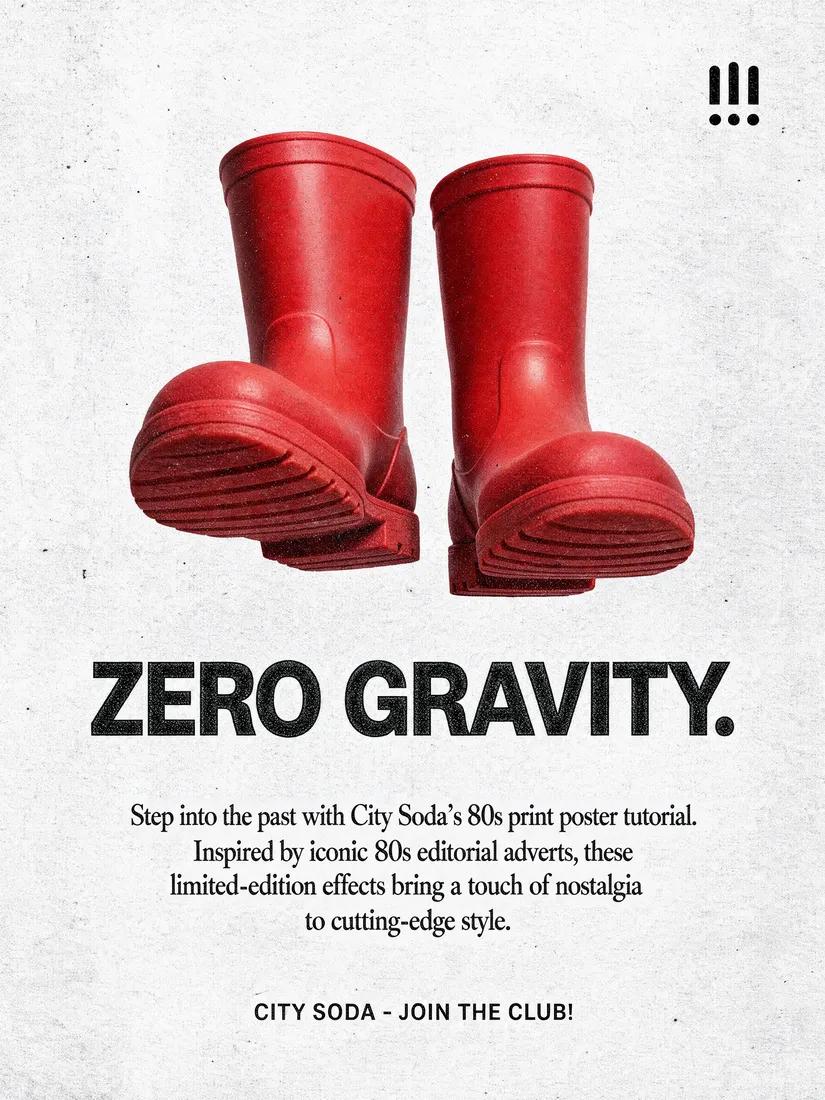
The Grok image generation turns text prompts into images. Check the selected model for available styles and settings.
- Use the Grok models in RapLyrics to generate images from text prompts. The generator shows the allowed inputs and settings for each model.
- The Model options vary by model. Check the generator for supported inputs, reference image modes, and settings before you generate.Text-to-image generation.
- Generate visuals for music projects and review them before use. Download clips from History and add your own music and timed lyric overlays in an external editor.Grok image generation in RapLyrics.
- Use this image prompt workflow to turn a clear idea into a visual by describing what you want to see.
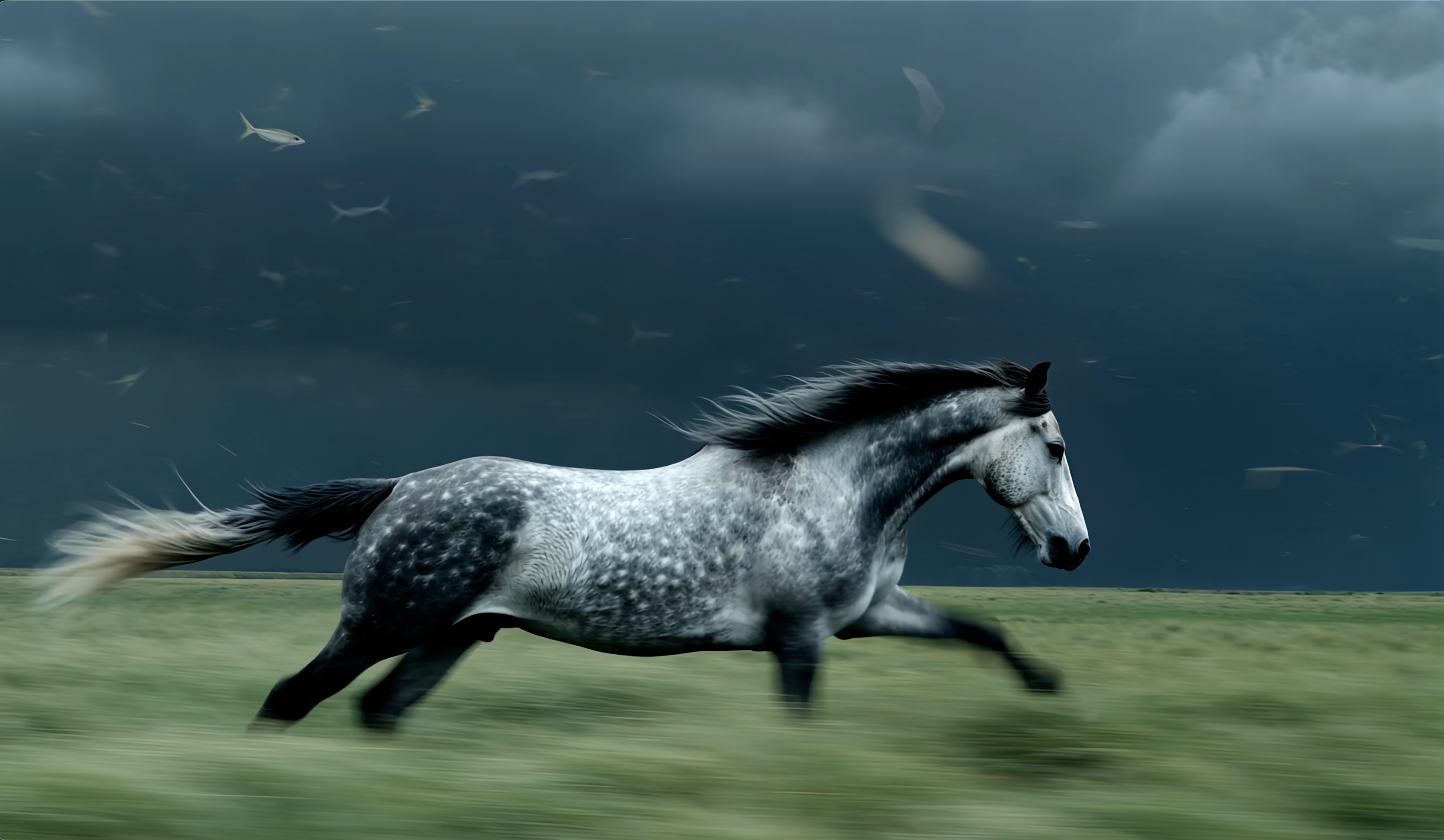
Prompt-based image editing
The Grok image generation editing workflow can help you revise existing visuals.
- Upload an image and use the Grok models in RapLyrics prompt to describe the changes you want.
- The Model optionsThis editing workflow can help you adjust colors, replace objects, or change backgrounds.
- Use the Prompt-based editing lets you refine details without advanced editing software or manual retouching.
- This Grok image generation in RapLyricsIterate on visual assets by describing what you want to change.
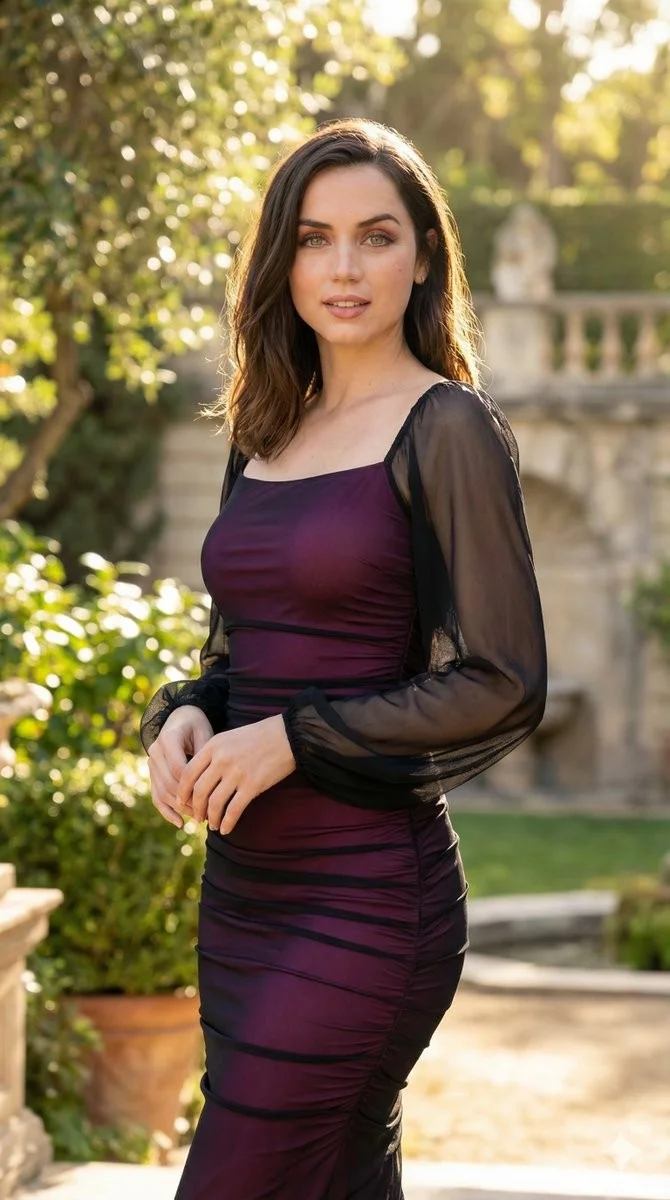
Reference image guidance
Guide the output with the image generator’s reference image options.
- The Grok models in RapLyrics by uploading reference images to guide subject, style, colors, product details, and scene direction, if your selected model offers image-reference input.
- With Model optionsUsing references can reduce guesswork when the reference image option is available.
- Support a consistent look by using the Grok image generation in RapLyrics reference image option to align with the aesthetic of your provided references, when offered by the selected model.
- This is useful for a cohesive look when using the image generator for project visuals.
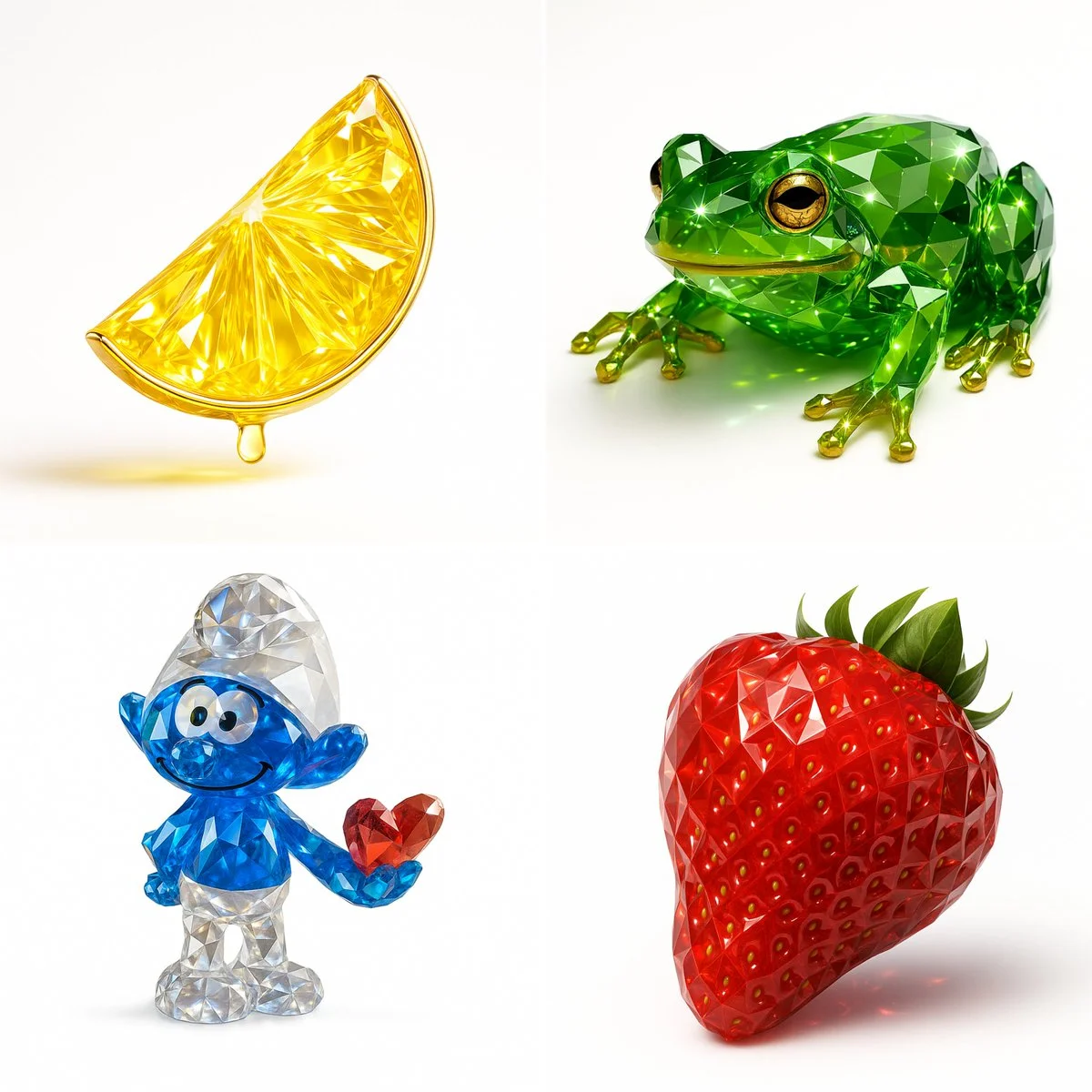
Multiple visual directions
Explore different visual directions with the Grok image generation.
- The Grok models in RapLyricsCreate multiple image ideas faster without manual design skills.
- Use Model optionsGenerate multiple image variations for ads, social posts, product mockups, thumbnails, and visual testing.
- The Grok image generation in RapLyricsThe available models offer a range of options, making them suitable forsocial media visuals with RapLyrics.
- Compare styles and compositions to find what fits your project using theimage generator in RapLyrics.
Why use this image generator?
This image generator helps with common visual content tasks. It is built for speed, ease of use, and practical application. If you need a tool that prioritizes utility over complexity, this is for you. Here is what it offers for daily use.
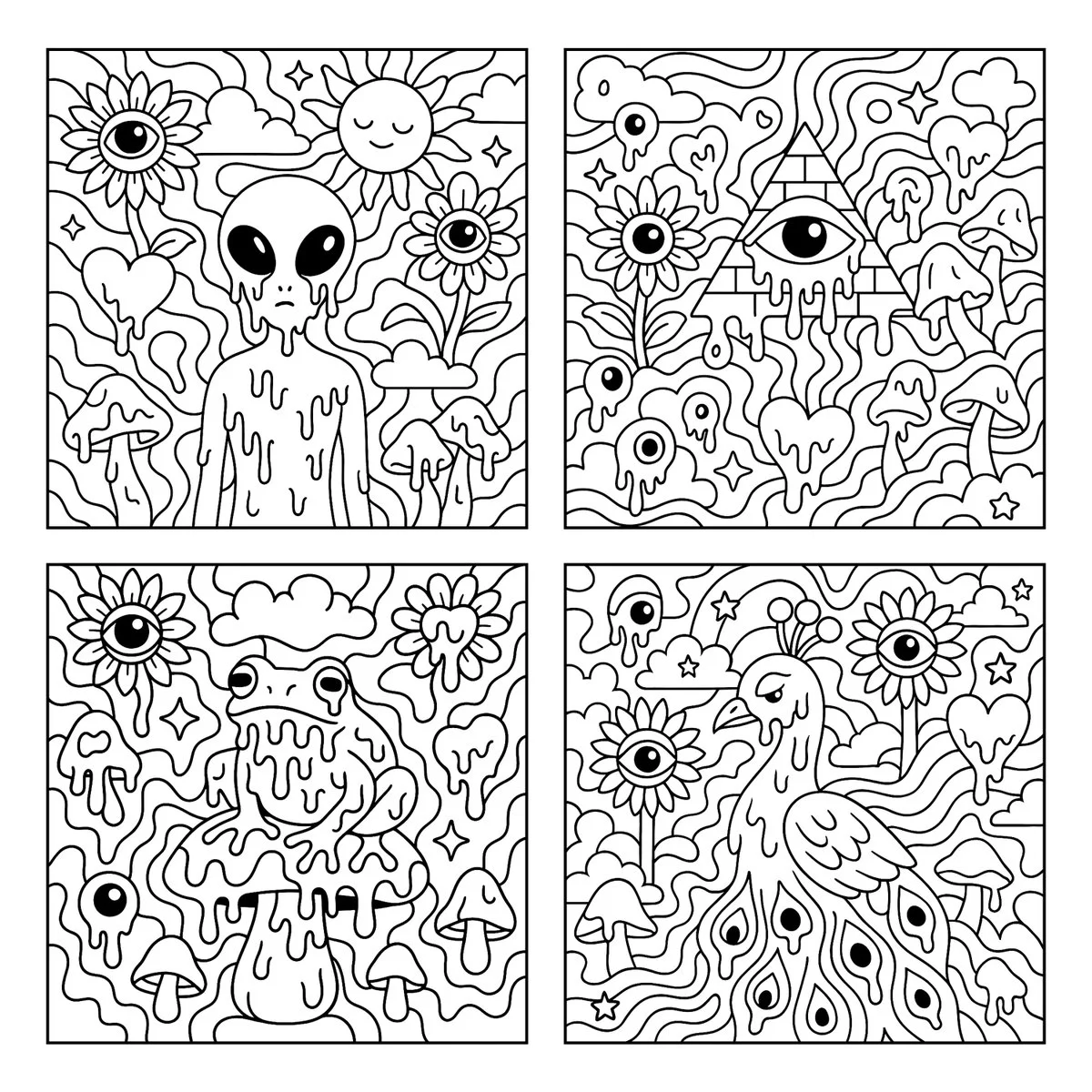
Skip Complex Software
You do not need to spend hours learning complicated design software. TheGrok image generationgenerator allows fast image generation without manual retouching, complex editing software, or advanced design skills. Just use thegenerator in RapLyricsto get what you need.
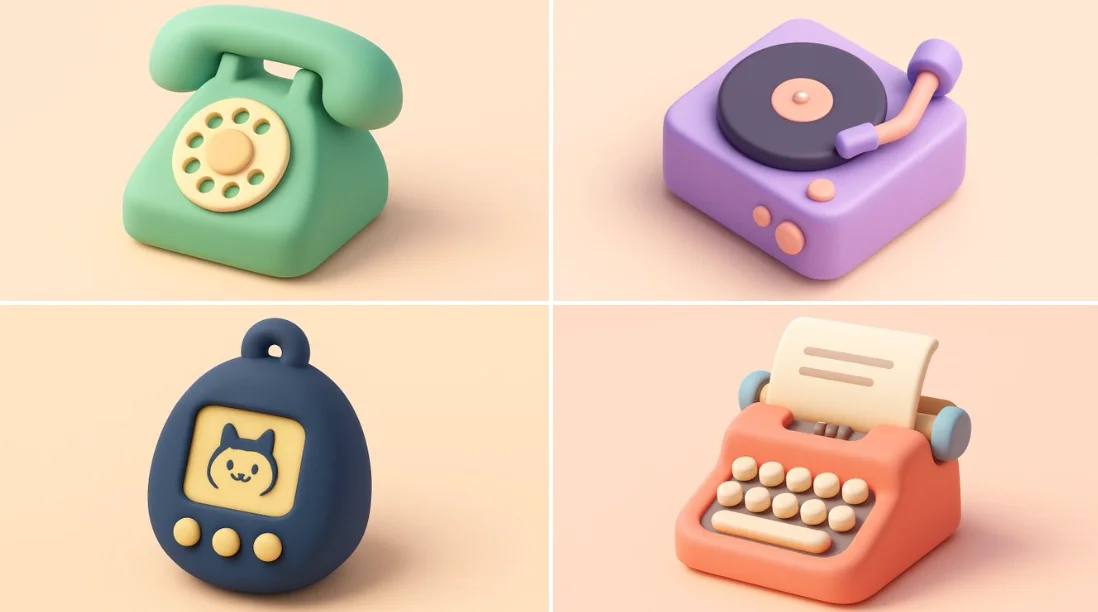
Turn Ideas into Visuals
Turn abstract ideas into usable visuals, not just vague inspiration. TheModel optionssystem turns text prompts into images quickly, making it a practicalchoice for creative ideas in RapLyrics.
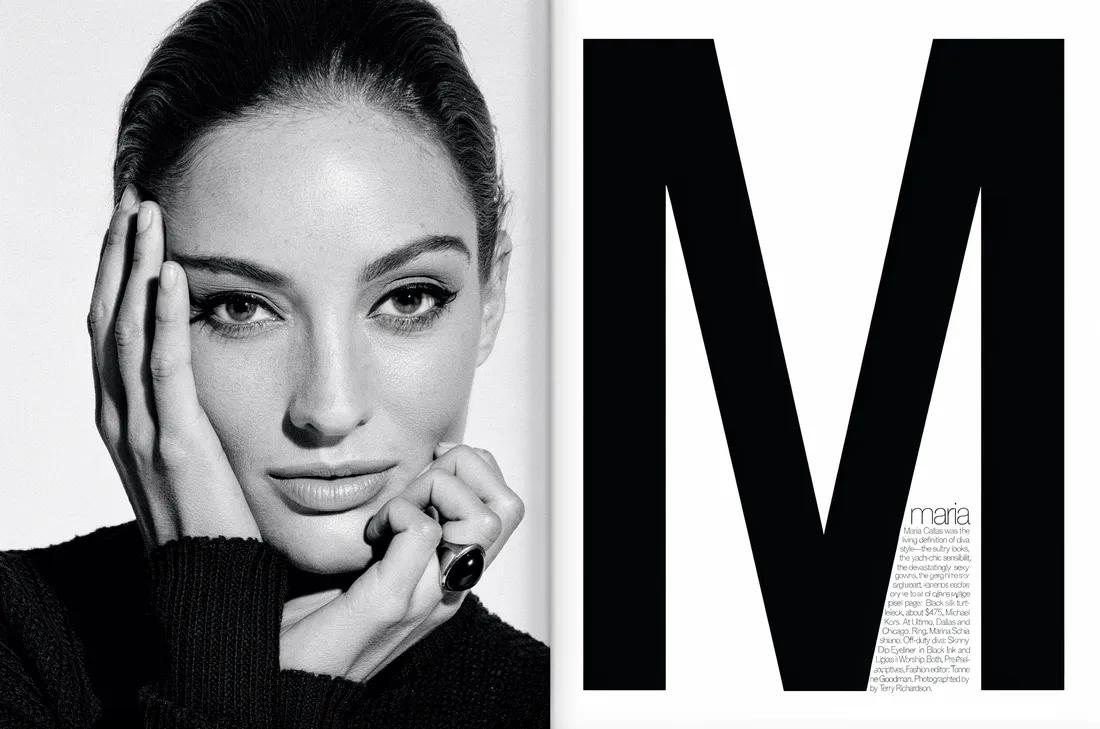
Reduce Randomness
When generating images, control matters. By using theimage generator’s reference image options, you can guide the subject, style, product look, and scene composition. This reduces randomness and makes theGrok image generation in RapLyricsmore dependable.
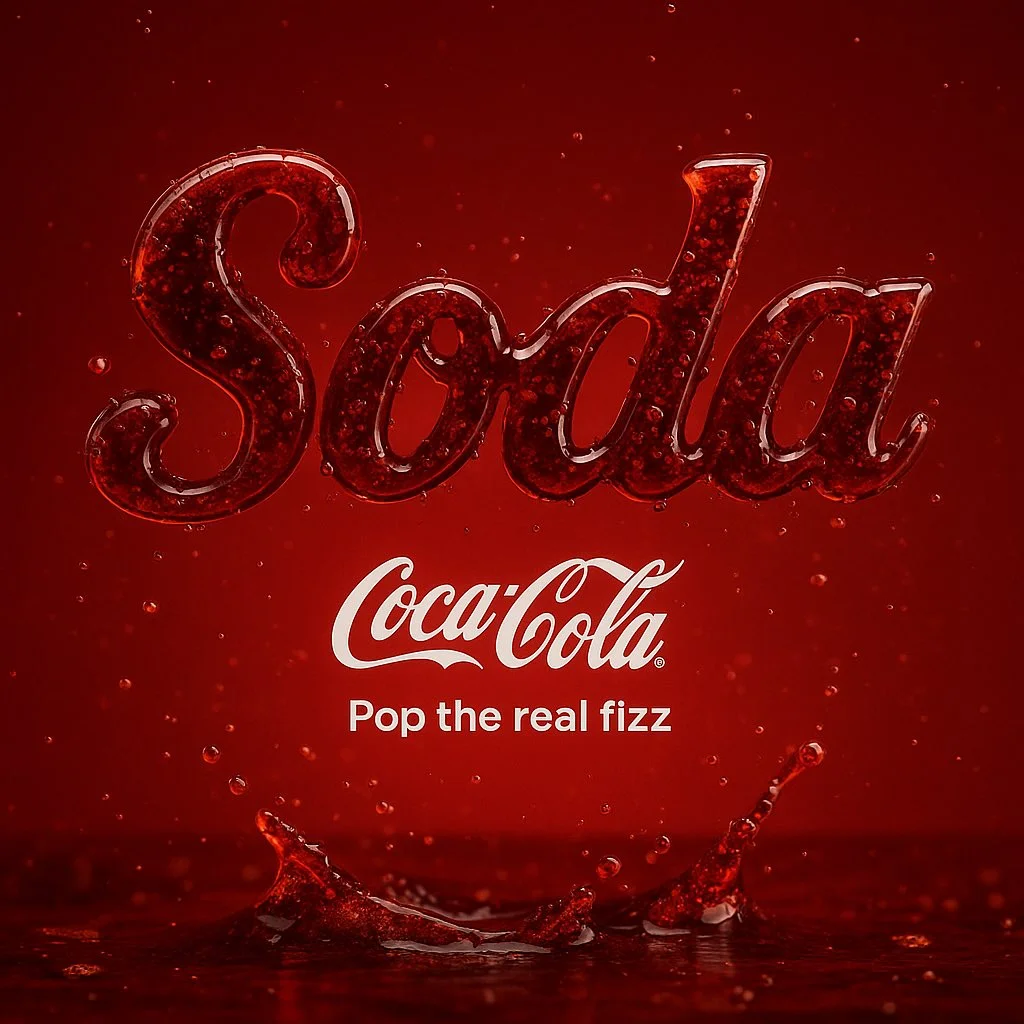
Built for Marketing and Social
You need multiple variations fast. TheGrok image generationis useful for generating product mockups, social media visuals, ad creatives, thumbnails, posters, and creative references. It is a practicalchoice for adsand social media campaigns.
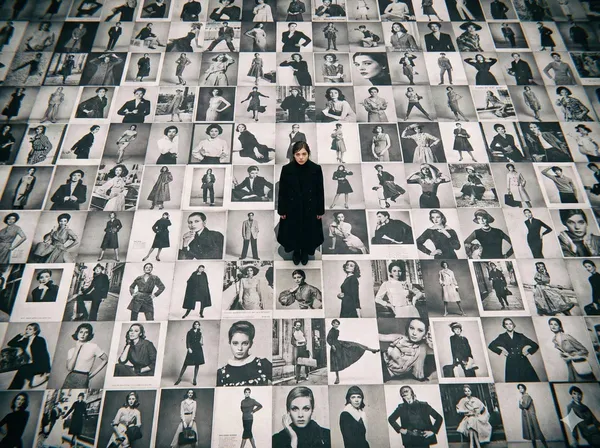
Easy Natural-Language Editing
Instead of manual erasing and painting, you can edit with text. Inside theGrok image generation, theGrok models in RapLyrics supports editing uploaded images with plain-language instructions, which can help with the Prompt-based editing step for music visual work.
Workflow Notes
Speed up early visual drafts with the Grok image generation by generating several image options from a prompt before you move to video. Check the model options for supported reference-image modes, then use the Grok models in RapLyrics to review the credit quote and download clips from History for editing in your own editor.
Workflow Notes
Describe one subject, action and setting before generating. Keep the brief focused so the result is easier to review.

Questions about music visual workflows
Quick answers about generating visual clips with RapLyrics, checking model options, reviewing credits, and moving finished output into your editor.
RapLyrics helps you generate image or video clips from text prompts using the currently enabled models in the generator. You can review and download finished clips from History, then add music and timed lyric overlays in an external editor.
Open the generator, choose from the currently enabled models, and enter a text prompt. Check the allowed inputs and settings shown there, review the credit quote before generating, and find finished output in History.
Some models offer supported image-reference modes. Check the selected model in the generator to see whether reference images are available and what inputs are allowed. Model-specific availability is not verified outside the generator.
The current credit quote is shown before generation. Review that quote so you know the cost for the selected model and settings before you start.
Finished output is in History. Review each generated clip, then download the visuals you want to use in your own editor with music and lyric timing.
No. Download visual clips and add your own music and timed lyric overlays in an external editor. RapLyrics does not provide automatic lyric synchronization.
Check the selected model to confirm allowed inputs, settings, and any supported options. Review the credit quote shown before generation. After generation, review the output in History before using it.
No. Generated visuals must be reviewed. No guaranteed quality, speed, character consistency, perfect text, or precise motion is offered. Check whether the selected model offers any advanced controls before you rely on them.
You can request a refund within 10 days of purchase if you have unused credits from that purchase and provide a clear reason, subject to our Refund Policy. If eligible, an unused purchase can be fully refunded; a partly used purchase is refunded in proportion to its remaining unused credits. Fully used purchases and free or promotional credits are not refundable.
Credit validity depends on the pack, subscription or promotion that issued them. Review the purchase terms and expiration dates in Settings > Credits. A renewal or new purchase does not extend older credits. Use credits before their stated expiration; do not assume unused subscription credits roll over indefinitely.
Credits charged for a task that is confirmed as failed due to a system error are returned automatically. A task that is still processing has not yet been confirmed as failed. Check its status and your credit history before submitting again. If a confirmed failure still shows an unresolved charge, email support@raplyrics.app with the task ID.
AI results can vary, so a completed result that differs from your expectations is not automatically treated as a technical failure. Eligible completed image tasks can be submitted for credit refund review using the refund option where available; approval is required. For a video or another issue, contact support@raplyrics.app with the task ID and details. A credit refund returns credits, not money to your payment method.
Email support@raplyrics.app. For billing, include your account email and order ID; for generation, include the task ID, issue description and relevant screenshots. If you purchased as a guest, keep the original browser data and payment receipt so we can help locate the purchase.
Generate your first visual with RapLyrics
Create images from text prompts with the Grok model family. Describe a scene, upload an image to edit with natural-language instructions, or use a reference image to guide style and composition. The generator shows available inputs and settings; the credit quote appears before generation, and finished output is in History. Review results before use.
raplyrics.app · Updated
What's new on this page
- — Corrected the default model selection for the Grok image generator. Added editable example prompts and separate drafts for text and reference modes, with an action to restore the example.
- — Page content published.