
Flux Image Concepts for Music Visuals
Flux Image Generator for Visuals
Use Flux to create images from prompts or uploaded references. Describe scenes and styles, edit existing visuals, and generate images for ads, products, posters, and social media. Available inputs and settings are shown in the generator.
Verified prompt

Verified prompt

Verified prompt
Verified prompt

Verified prompt

Verified prompt
Verified prompt

Verified prompt
Verified prompt
Verified prompt
Verified prompt
Verified prompt
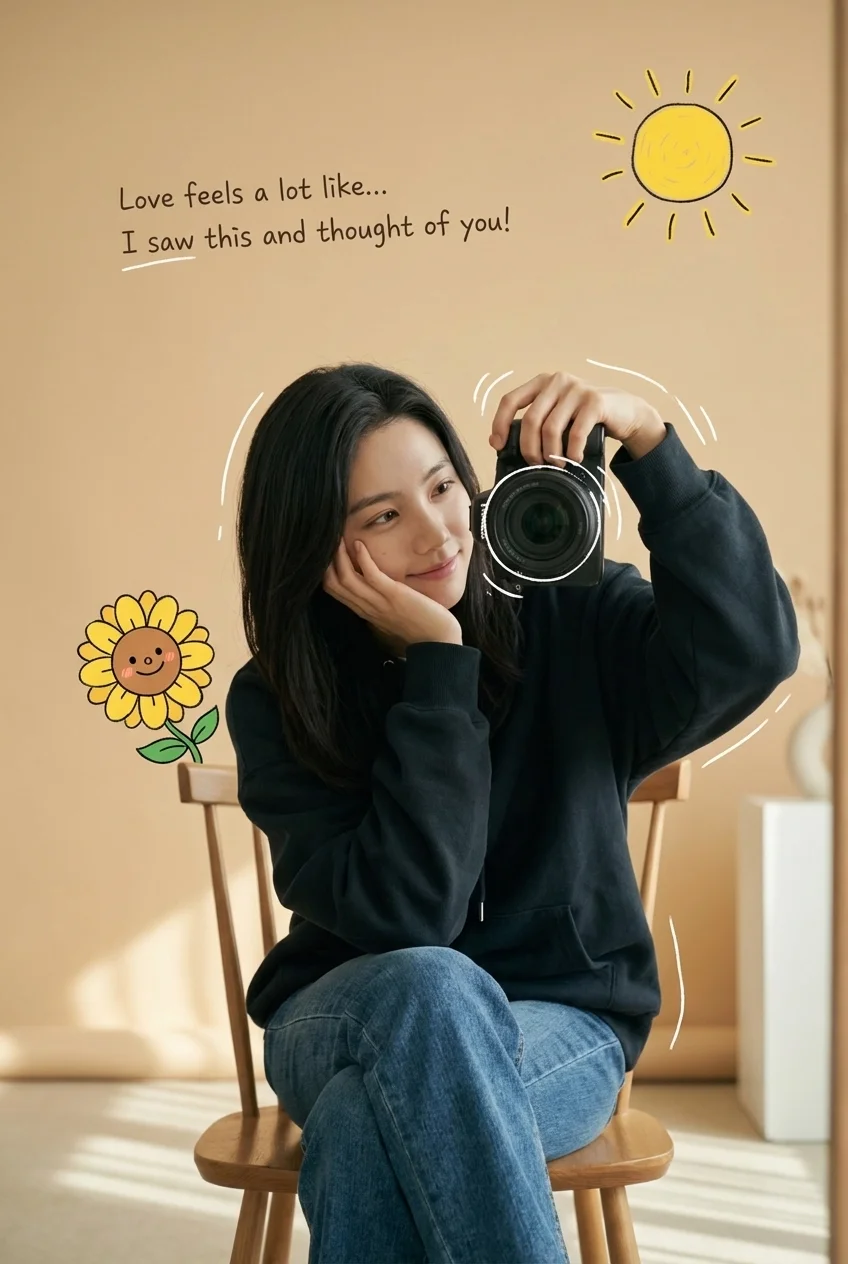
cription] Aesthetic cozy mirror selfie of a young woman sitting casually on a chair, wearing a dark oversized hoodie and blue jeans. She holds a professional camera in one hand while resting her face gently on the other with a soft, dreamy smile. The background is warm beige with soft studio lighting and a minimal modern interior. Cute cartoon-style doodles float around her, including a smiling sunflower character, a hand-drawn yellow sun, and playful white sketch lines around the camera. A handwritten romantic quote appears on the wall: 'Love feels a lot like… I saw this and thought of you!'. The overall style mixes photorealism with illustrated sticker overlays, creating a cozy, romantic Instagram aesthetic.. [Style] Tones: soft warm tones, cozy romantic vibe. Lighting: soft studio lighting, warm and diffused. Aesthetic: Instagram aesthetic with cinematic depth of field. Texture: natural skin texture, ultra-detailed. [Visual Elements] Subject: [Gender] female. [Pose] sitting casually on a chair, taking a mirror selfie. [Clothing] dark oversized hoodie and blue jeans. [Expression] soft dreamy smile.. Environment: [Background] warm beige indoor setting, minimal modern interior. [Lighting] soft warm shadows.. Overlays: cute smiling sunflower doodle, hand-drawn yellow sun, white sketch lines around the camera, handwritten romantic quote on the wall. [Quality] Resolution: 4K ultra-detailed. Render: photorealistic with illustrated sticker overlay. [Format] Ratio: 3:4.
cription] Aesthetic cozy mirror selfie of a young woman sitting casually on a chair, wearing a dark oversized hoodie and blue jeans. She holds a professional camera in one hand while resting her face gently on the other with a soft, dreamy smile. The background is warm beige with soft studio lighting and a minimal modern interior. Cute cartoon-style doodles float around her, including a smiling sunflower character, a hand-drawn yellow sun, and playful white sketch lines around the camera. A handwritten romantic quote appears on the wall: 'Love feels a lot like… I saw this and thought of you!'. The overall style mixes photorealism with illustrated sticker overlays, creating a cozy, romantic Instagram aesthetic.. [Style] Tones: soft warm tones, cozy romantic vibe. Lighting: soft studio lighting, warm and diffused. Aesthetic: Instagram aesthetic with cinematic depth of field. Texture: natural skin texture, ultra-detailed. [Visual Elements] Subject: [Gender] female. [Pose] sitting casually on a chair, taking a mirror selfie. [Clothing] dark oversized hoodie and blue jeans. [Expression] soft dreamy smile.. Environment: [Background] warm beige indoor setting, minimal modern interior. [Lighting] soft warm shadows.. Overlays: cute smiling sunflower doodle, hand-drawn yellow sun, white sketch lines around the camera, handwritten romantic quote on the wall. [Quality] Resolution: 4K ultra-detailed. Render: photorealistic with illustrated sticker overlay. [Format] Ratio: 3:4.
Plan Your Music Visuals
Create an image, animate a scene or find a starting prompt for your project.
Flux Image Generator: Create and Edit Visuals
Generate images from text prompts or uploaded references for posters, products, and ads. Check the selected model for available reference and text options.
The Flux image generator turns text prompts or uploaded images into visuals. It can support image editing and reference-guided generation where the selected model allows. Available inputs and settings are shown in the generator; the credit quote appears before generation, and finished output is in History.
Start Generating
How to Use the Flux Image Generator in 3 Steps
Follow these steps to generate an image. Available inputs and settings depend on the model selected in the generator.

Enter a prompt or upload an image
First, open the generator and choose a Flux model. Enter a text description or upload an image for editing. If the selected model supports reference images, you can upload one to guide style.

Click generate
Next, review the inputs and settings shown in the generator. The credit quote is displayed before generation. Click generate to process your prompt and any references you provided.
Download
Finally, find the finished image in History. Review the result before downloading for sharing, advertising, e-commerce, or creative reference.
Core Capabilities of the Flux Image Generator
The Flux image generator supports text-to-image and image editing where the selected model allows. Available inputs, settings, and reference modes are shown in the generator.

Generate and Edit Images in One Flux Workflow
Generate images from text prompts and edit uploaded images with natural-language instructions where the selected model supports editing. Describe scenes, styles, subjects, and details. Check the generator for available inputs and settings. The credit quote is shown before generation, and finished output is in History.
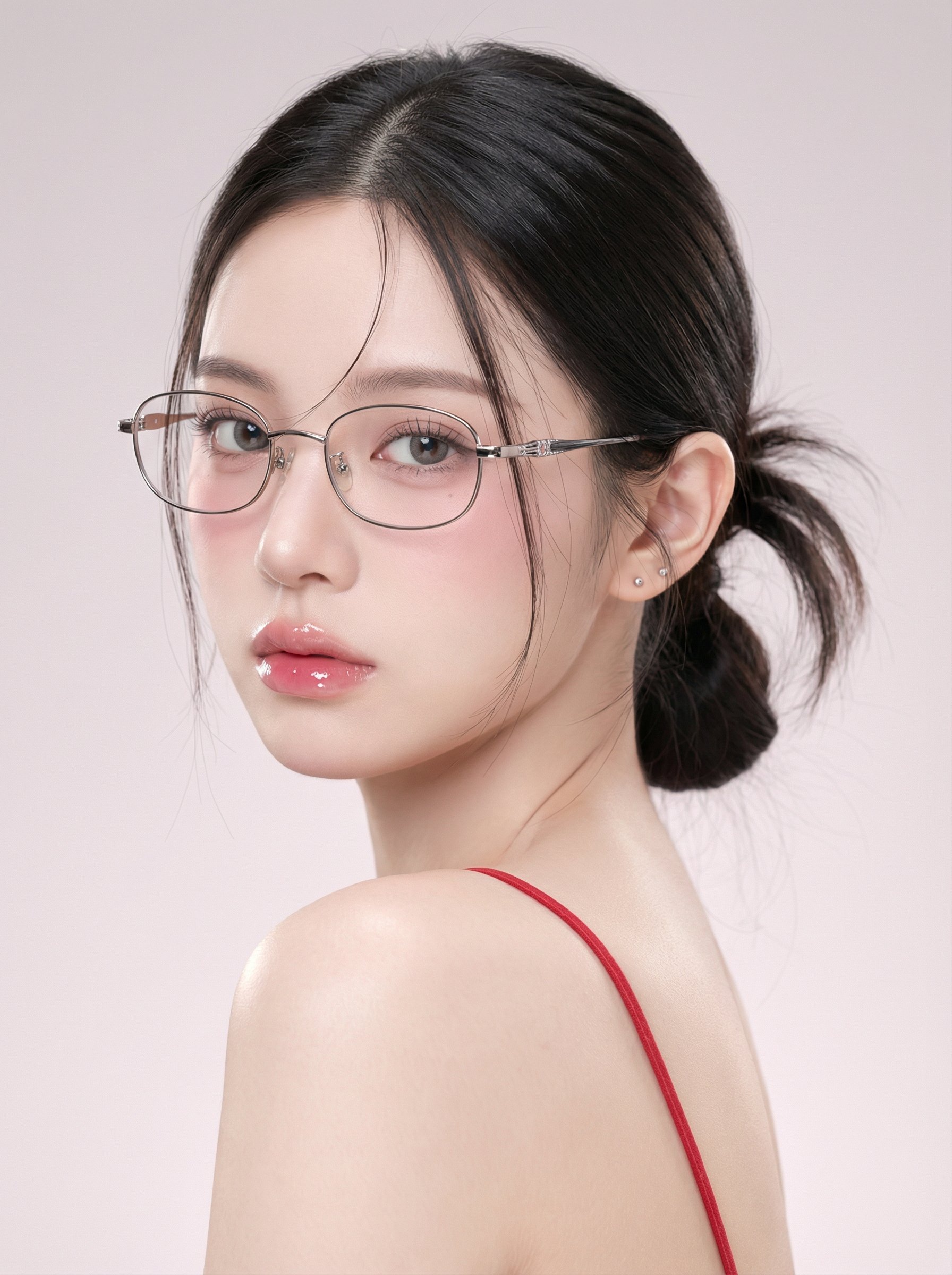
Reference Images
If the selected model offers multi-reference controls, you can use reference images to guide characters, products, styles, and composition. Check the generator for availability. Reference-guided generation can reduce trial and error compared with text prompts alone. Review results before use.
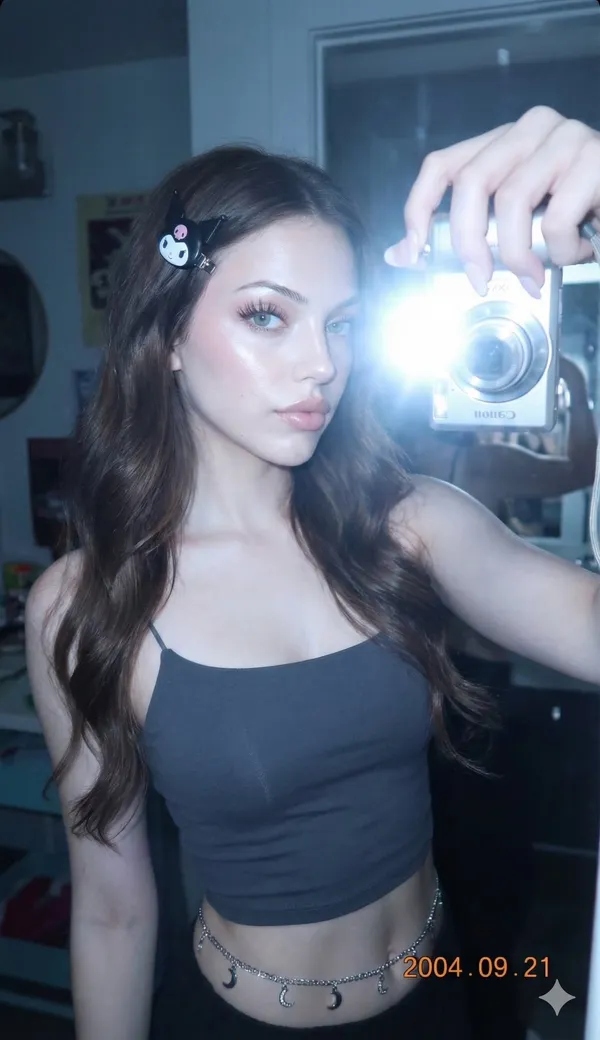
Character, Product, Logo, and Style Consistency
Check whether the selected model offers controls for preserving character identity, product shape, outfits, brand colors, or layout across images. Availability is shown in the generator. Review each result for consistency before use in campaigns or product showcases.
Posters, Ads, and Branded Visuals
The Flux image generator can create posters and branded visuals from text prompts. Check the selected model for available text, reference, and editing options. Review generated text and design elements for accuracy before use in marketing materials.
Why Choose RapLyrics for Flux Image Generation: Practical Workflows
See how Flux models in RapLyrics fit into real production tasks. Pick a currently enabled model in the generator to view actual inputs and settings, get a credit quote before generation, then review finished outputs in History.

Controlled Generation and Image Edits
Flux models in RapLyrics can create images from text prompts and, where offered, handle image-reference workflows. Available capabilities depend on the selected model and are shown in the generator. Use the credit quote before you generate. Finished outputs appear in History for review.
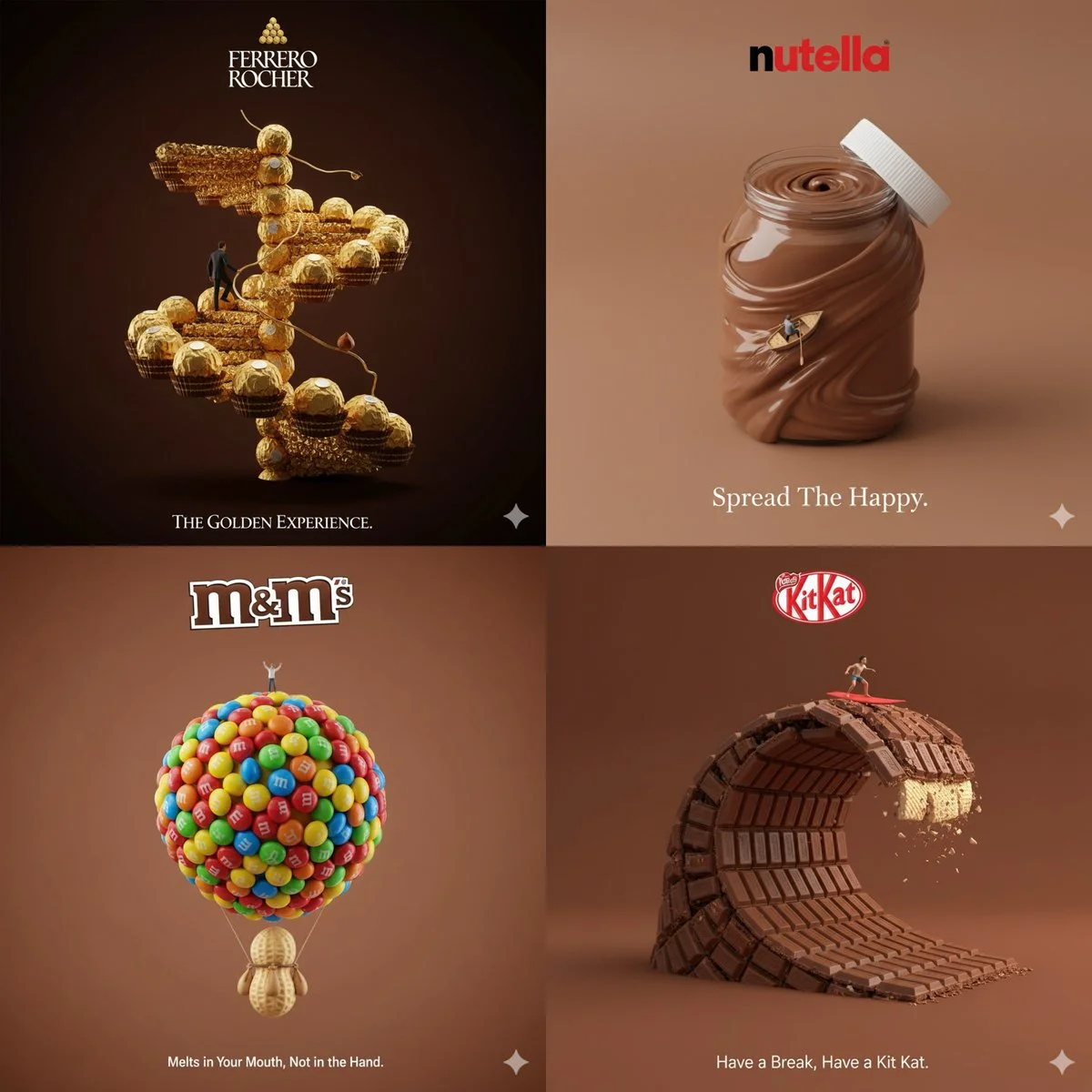
Social media and advertising
For release graphics, campaign stills, and social visuals, choose a model that supports the inputs you need. Any text or typography handling depends on the selected model; check the generator for available options. Plan to refine or set text in an external editor when needed. Review every result before publishing.
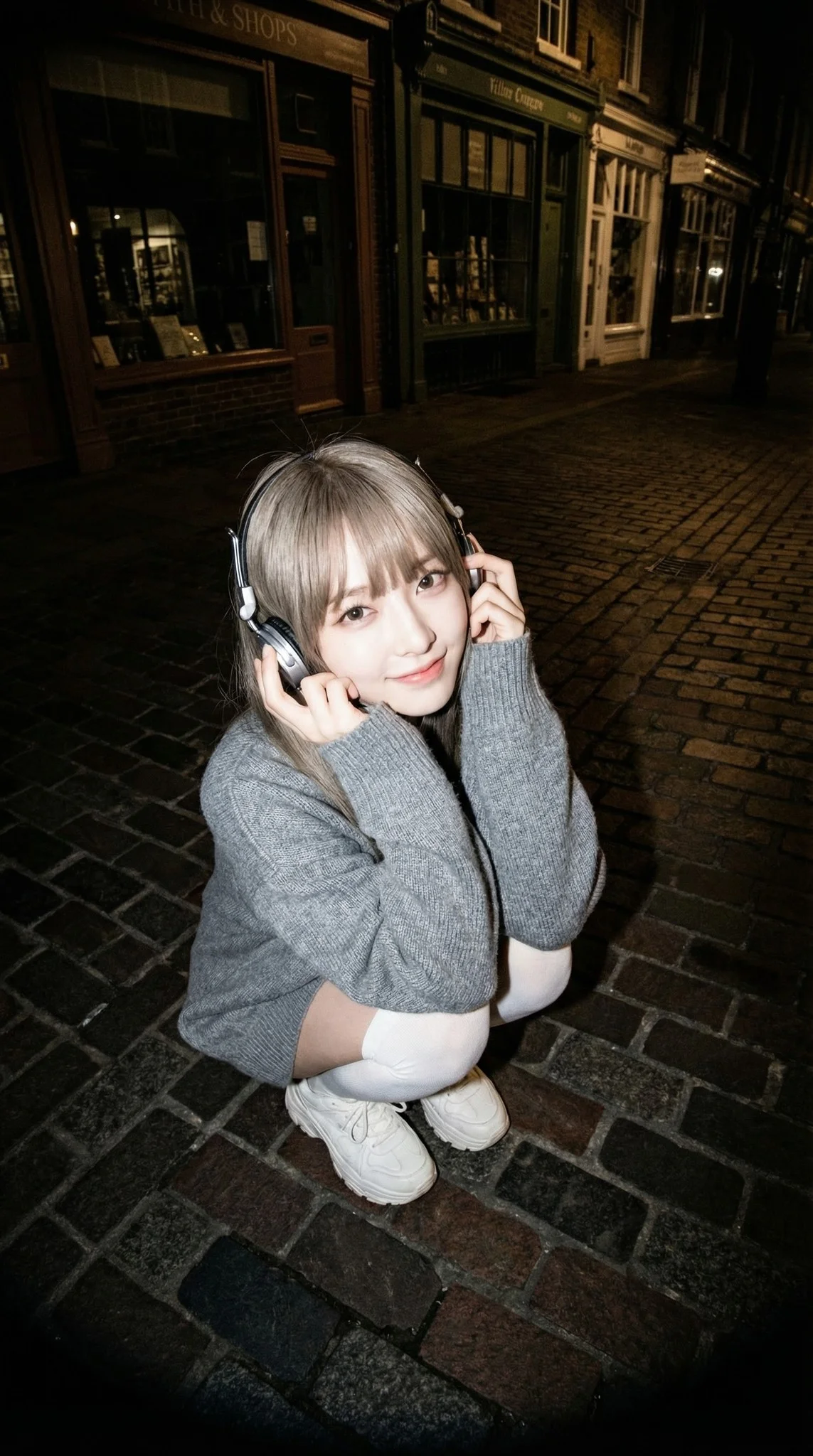
Brand visual continuity
Brand and product visuals often require consistent details. If the selected model offers image-reference modes, check the generator for supported inputs. Model-specific availability and capabilities are not guaranteed. For precise alignment of logos, colors, and layouts, plan to make final adjustments in an external editor after generation.

Efficient Production Workflow
Speed and quality vary by model and prompt. Use the generator to see allowed inputs and settings, and check the credit quote before generating. Review outputs in History and iterate as needed. For music projects, download visual clips and add your own music and timed lyric overlays in an external editor.
Workflow Notes
Describe one subject, action and setting before generating. Keep the brief focused so the result is easier to review.

FAQ for Flux Image Generation in RapLyrics
Quick answers about using Flux models in RapLyrics. For specifics, open the generator to see currently enabled models, allowed inputs, settings, and the credit quote shown before generation.
A Flux image generator creates images from text prompts and, depending on the model, may support image-reference workflows. In RapLyrics, available models and settings are shown in the generator.
Enter a descriptive prompt in the generator. The selected model processes your input and produces an image. Exact behavior, settings, and capabilities depend on the model and are shown before you generate.
If the selected model supports image-reference modes, the generator will show the allowed inputs. Availability and capabilities vary by model and are not guaranteed. Check the generator for details before you start.
RapLyrics lets you choose from currently enabled models, shows a credit quote before generation, and keeps finished outputs in History. Supported features such as text-to-image, text-to-video, and image-reference modes depend on the selected model and are shown in the generator.
Check the generator for the selected model. Multi-reference controls are not guaranteed. If offered, the generator will show the allowed inputs and settings; otherwise, plan to refine in an external editor.
Consistency and text rendering vary by model and prompt. If the selected model offers relevant settings, they will appear in the generator. Review every output and plan to make final adjustments, including text, in an external editor.
You can request a refund within 10 days of purchase if you have unused credits from that purchase and provide a clear reason, subject to our Refund Policy. If eligible, an unused purchase can be fully refunded; a partly used purchase is refunded in proportion to its remaining unused credits. Fully used purchases and free or promotional credits are not refundable.
Credit validity depends on the pack, subscription or promotion that issued them. Review the purchase terms and expiration dates in Settings > Credits. A renewal or new purchase does not extend older credits. Use credits before their stated expiration; do not assume unused subscription credits roll over indefinitely.
Credits charged for a task that is confirmed as failed due to a system error are returned automatically. A task that is still processing has not yet been confirmed as failed. Check its status and your credit history before submitting again. If a confirmed failure still shows an unresolved charge, email support@raplyrics.app with the task ID.
AI results can vary, so a completed result that differs from your expectations is not automatically treated as a technical failure. Eligible completed image tasks can be submitted for credit refund review using the refund option where available; approval is required. For a video or another issue, contact support@raplyrics.app with the task ID and details. A credit refund returns credits, not money to your payment method.
Email support@raplyrics.app. For billing, include your account email and order ID; for generation, include the task ID, issue description and relevant screenshots. If you purchased as a guest, keep the original browser data and payment receipt so we can help locate the purchase.
Start Generating with Flux in RapLyrics
Open the generator, choose a currently enabled Flux model, and review the allowed inputs, settings, and credit quote. Generate, then review finished outputs in History. For music projects, download visual clips and add your own music and timed lyric overlays in an external editor.
raplyrics.app · Updated
What's new on this page
- — Added editable example prompts and separate drafts for text and reference modes, with an action to restore the example.
- — Page content published.