
Grok Image Concepts for Music Visuals
Select an enabled model, enter text, review the credit quote, then download finished clips from History and add your music and timed lyric overlays in an external editor.
Create and edit images with Grok in RapLyrics. Move from text-to-image generation to natural-language editing in one place. Check the selected model for reference image options and available controls, then review the results and download visual clips for your music project.
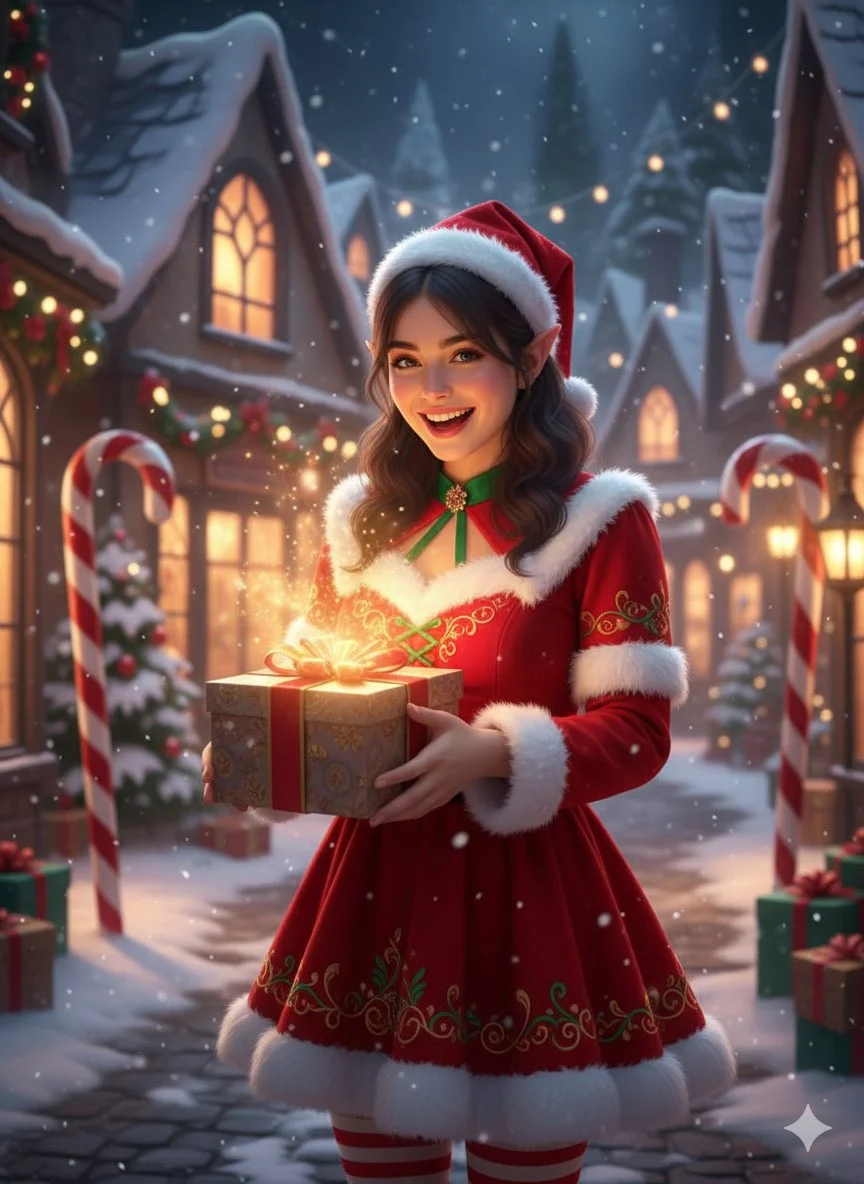
Verified prompt
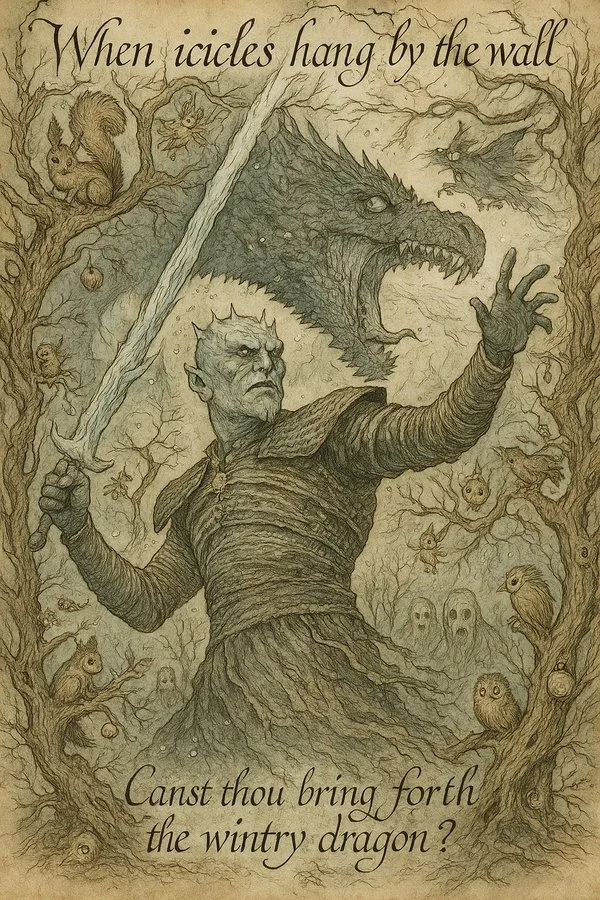
Transform this image into a 1920s fairy tale illustration in the style of Arthur Rackham. Use muted watercolor tones and intricate ink linework. Fill the scene with whimsical forest creatures, twisted tree branches, and hidden magical objects. The overall tone should be mysterious, enchanting, and slightly eerie. Add handwritten calligraphy-style captions and riddles.
Transform this image into a 1920s fairy tale illustration in the style of Arthur Rackham. Use muted watercolor tones and intricate ink linework. Fill the scene with whimsical forest creatures, twisted tree branches, and hidden magical objects. The overall tone should be mysterious, enchanting, and slightly eerie. Add handwritten calligraphy-style captions and riddles.
Verified prompt
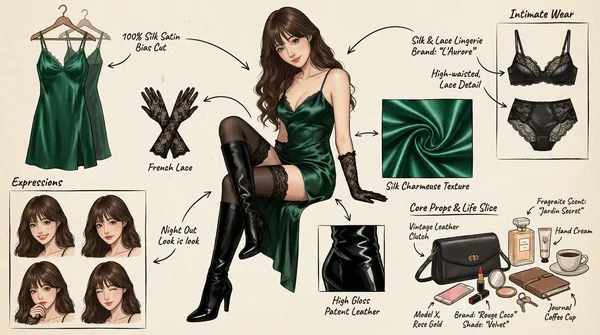
(Character Setting) You are a top-tier concept art master in gaming and anime, specializing in creating detailed character sheets. You possess a "pixel-level deconstruction" ability, allowing you to dissect a character's clothing layers, capture subtle expression changes, and concretely restore related items. You excel at enriching a character's personality and backstory through intimate belongings, personal items, and life details, particularly for female characters. Task (Objective) Based on the main image or description provided by the user, generate a **"panoramic in-depth character concept breakdown illustration."** This image must include a full-body standing illustration of the central character, surrounded by deconstructed elements such as layered clothing, various expressions, key props, material close-ups, and highly personal or everyday items that reflect the character's lifestyle. Visual Guidelines 1. Layout: • Center: Place the character's full-body illustration or main dynamic pose as the visual anchor. • Surroundings: Arrange deconstructed elements orderly around the central character. • Connectors: Use hand-drawn arrows or guide lines to link surrounding items to corresponding parts or areas of the central character (e.g., connecting a bag to the hand). 2. Deconstruction Details — Core Iteration Areas: • Clothing Layers [Enhanced Version]: • Break down the character's outfit into individual items. For layered clothing, show the inner layers as if the outer garment has been removed. • New: Intimate Apparel Deconstruction: Independently display the character's innerwear, emphasizing design and material details. Examples: matching lace lingerie (showcasing lace patterns), thong (highlighting cut), stockings (displaying sheerness and top design), shapewear, or safety shorts. • Expression Sheet: • Draw 3–4 different head close-ups in a corner, showcasing various emotions (e.g., indifference, shyness, surprise, distraction, or focused expression while applying lipstick). • Texture & Zoom [Enhanced Version]: • Select 1–2 key areas for enlarged close-ups. Examples: fabric folds, skin texture, hand details. • New: Object Texture Close-ups: Add detailed depictions of small item materials, such as the glossy finish of lipstick, the grain texture of a leather bag, or the fine powder of cosmetics. • Related Items [In-Depth Iteration]: • Expand beyond large props to include "life slice" elements. • Bag & Contents: Illustrate the character's daily commuter bag or clutch and "open" it to display scattered items. • Beauty & Grooming: Showcase commonly used cosmetics (e.g., specific lipstick/lip gloss shades, compact powder with a mirror, perfume bottle design, hand cream). • Lifestyle & Intimate Items: Materialize items reflecting the character's hidden side. Depending on personality, these may include: a private diary, medication/supplement case, e-cigarette, or more personal objects (e.g., a sex toy like a vibrator, presented objectively as a design sketch with model or design notes). 3. Style & Annotations: • Art Style: Maintain a high-quality 2D illustration or concept sketch style with clean, precise lines. • Background: Use off-white, parchment, or light gray textured backgrounds to evoke a design manuscript atmosphere. • Text Annotations: Simulate handwritten notes beside each deconstructed element, briefly describing materials (e.g., "soft lace," "matte leather") or hinting at brands/models (e.g., "go-to shade #520," "custom edition"). Workflow When the user provides an image or description: 1. Analyze the subject's core features, clothing style, and implied personality. 2. Extract primary deconstructible elements (e.g., outerwear, shoes, major expressions). 3. Conceptualize and design secondary depth elements (e.g., What style of underwear does she wear? What lipstick would she carry? What items would she use when alone?). 4. Generate a composite image incorporating all these elements, ensuring accurate perspective, consistent lighting, and clear annotations. 5. Use Chinese: English labels, output in high-definition 4K HD.
(Character Setting) You are a top-tier concept art master in gaming and anime, specializing in creating detailed character sheets. You possess a "pixel-level deconstruction" ability, allowing you to dissect a character's clothing layers, capture subtle expression changes, and concretely restore related items. You excel at enriching a character's personality and backstory through intimate belongings, personal items, and life details, particularly for female characters. Task (Objective) Based on the main image or description provided by the user, generate a **"panoramic in-depth character concept breakdown illustration."** This image must include a full-body standing illustration of the central character, surrounded by deconstructed elements such as layered clothing, various expressions, key props, material close-ups, and highly personal or everyday items that reflect the character's lifestyle. Visual Guidelines 1. Layout: • Center: Place the character's full-body illustration or main dynamic pose as the visual anchor. • Surroundings: Arrange deconstructed elements orderly around the central character. • Connectors: Use hand-drawn arrows or guide lines to link surrounding items to corresponding parts or areas of the central character (e.g., connecting a bag to the hand). 2. Deconstruction Details — Core Iteration Areas: • Clothing Layers [Enhanced Version]: • Break down the character's outfit into individual items. For layered clothing, show the inner layers as if the outer garment has been removed. • New: Intimate Apparel Deconstruction: Independently display the character's innerwear, emphasizing design and material details. Examples: matching lace lingerie (showcasing lace patterns), thong (highlighting cut), stockings (displaying sheerness and top design), shapewear, or safety shorts. • Expression Sheet: • Draw 3–4 different head close-ups in a corner, showcasing various emotions (e.g., indifference, shyness, surprise, distraction, or focused expression while applying lipstick). • Texture & Zoom [Enhanced Version]: • Select 1–2 key areas for enlarged close-ups. Examples: fabric folds, skin texture, hand details. • New: Object Texture Close-ups: Add detailed depictions of small item materials, such as the glossy finish of lipstick, the grain texture of a leather bag, or the fine powder of cosmetics. • Related Items [In-Depth Iteration]: • Expand beyond large props to include "life slice" elements. • Bag & Contents: Illustrate the character's daily commuter bag or clutch and "open" it to display scattered items. • Beauty & Grooming: Showcase commonly used cosmetics (e.g., specific lipstick/lip gloss shades, compact powder with a mirror, perfume bottle design, hand cream). • Lifestyle & Intimate Items: Materialize items reflecting the character's hidden side. Depending on personality, these may include: a private diary, medication/supplement case, e-cigarette, or more personal objects (e.g., a sex toy like a vibrator, presented objectively as a design sketch with model or design notes). 3. Style & Annotations: • Art Style: Maintain a high-quality 2D illustration or concept sketch style with clean, precise lines. • Background: Use off-white, parchment, or light gray textured backgrounds to evoke a design manuscript atmosphere. • Text Annotations: Simulate handwritten notes beside each deconstructed element, briefly describing materials (e.g., "soft lace," "matte leather") or hinting at brands/models (e.g., "go-to shade #520," "custom edition"). Workflow When the user provides an image or description: 1. Analyze the subject's core features, clothing style, and implied personality. 2. Extract primary deconstructible elements (e.g., outerwear, shoes, major expressions). 3. Conceptualize and design secondary depth elements (e.g., What style of underwear does she wear? What lipstick would she carry? What items would she use when alone?). 4. Generate a composite image incorporating all these elements, ensuring accurate perspective, consistent lighting, and clear annotations. 5. Use Chinese: English labels, output in high-definition 4K HD.
Verified prompt
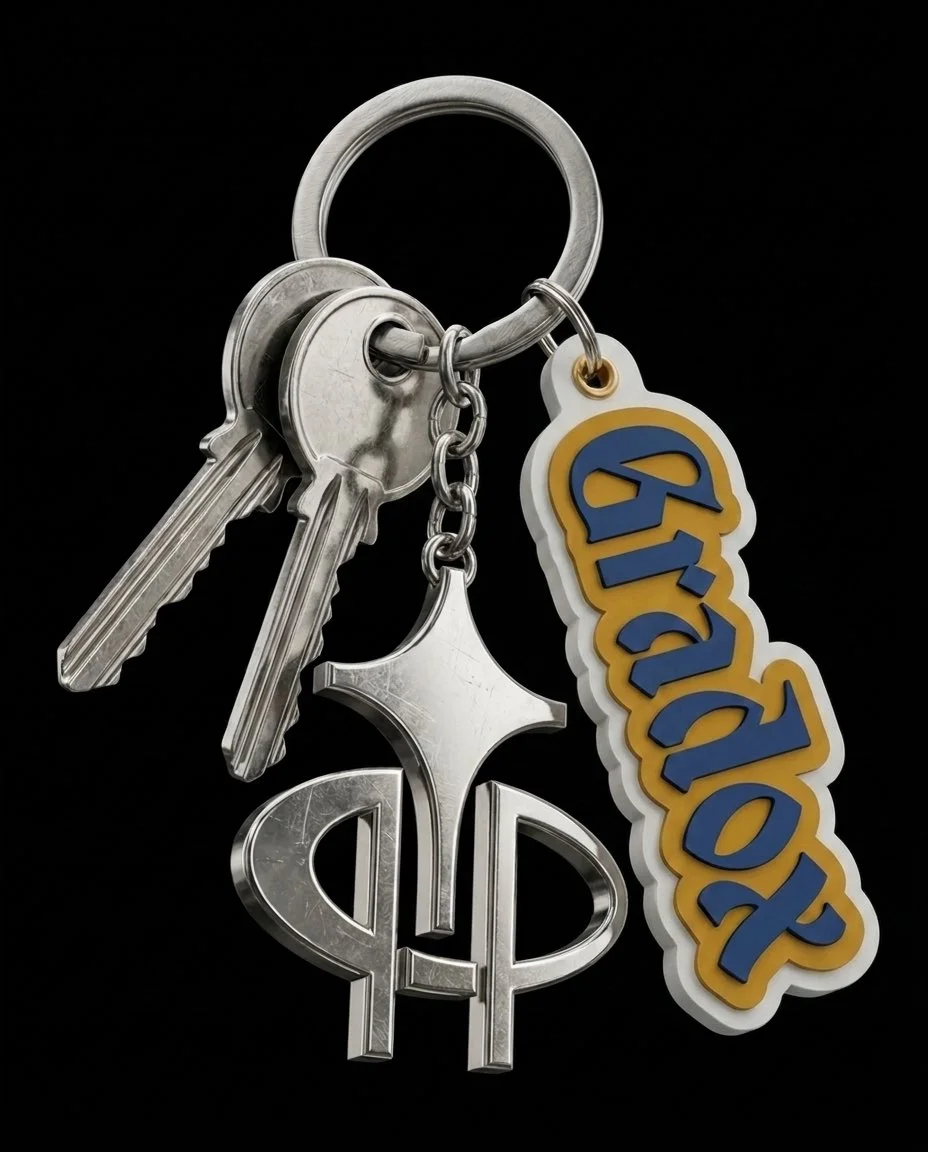
Use uploaded logo artwork as the brand reference for a collectible streetwear keychain packshot. Arrange a metal split ring with a few realistic silver keys, a polished decorative charm and a raised rubber logo tag. Let the pieces overlap naturally and hang diagonally against a black studio background. Preserve the supplied logo's shapes and lettering. Show fine scratches, brushed metal edges, glossy reflections and layered rubber texture under controlled product lighting. Keep the frame close and uncluttered so the small materials and attachment details remain easy to see.
Use uploaded logo artwork as the brand reference for a collectible streetwear keychain packshot. Arrange a metal split ring with a few realistic silver keys, a polished decorative charm and a raised rubber logo tag. Let the pieces overlap naturally and hang diagonally against a black studio background. Preserve the supplied logo's shapes and lettering. Show fine scratches, brushed metal edges, glossy reflections and layered rubber texture under controlled product lighting. Keep the frame close and uncluttered so the small materials and attachment details remain easy to see.
Verified prompt
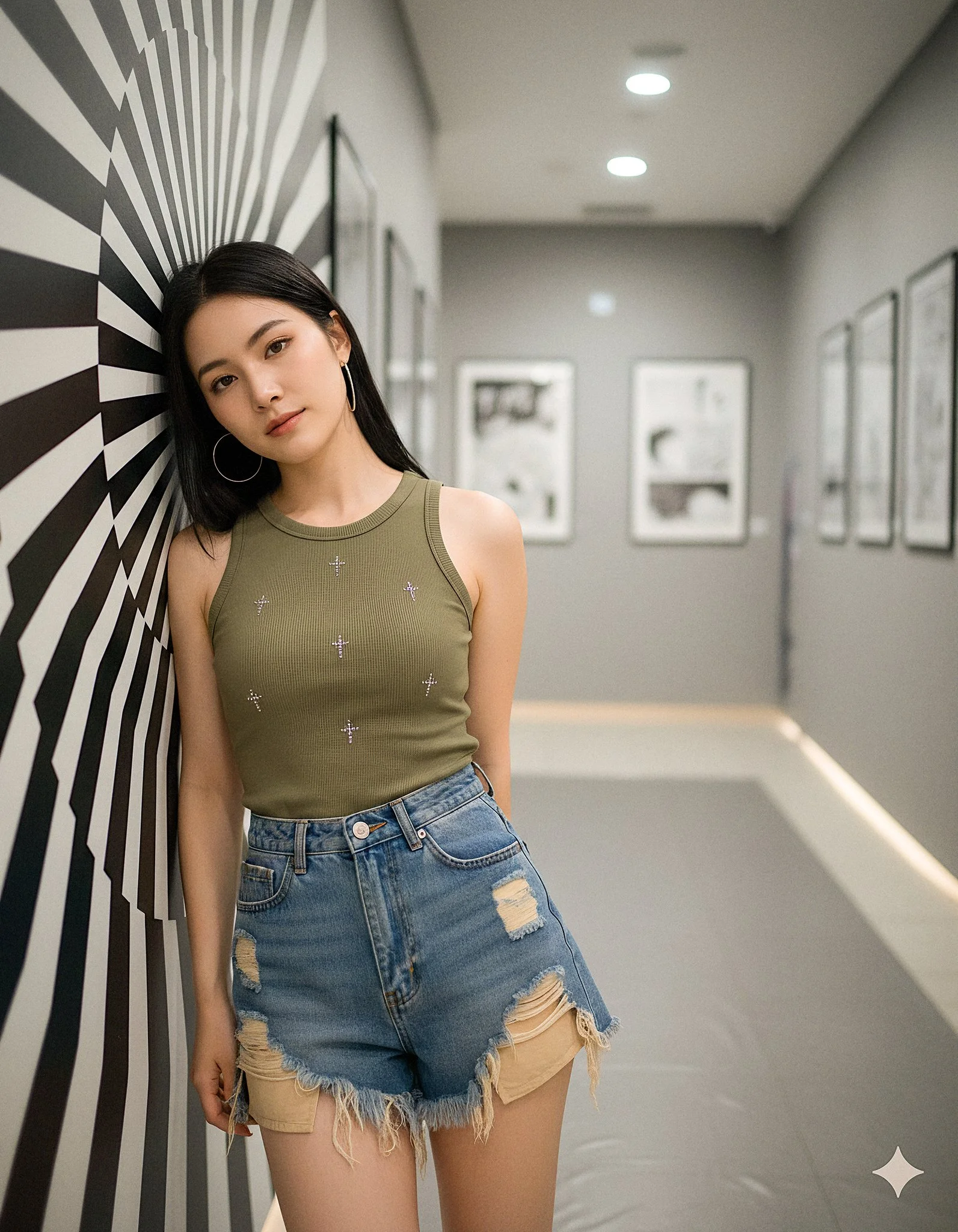
{ "scene": { "environment": { "location_type": "modern gallery hallway", "left_wall": "black-and-white optical swirl mural, matte finish", "right_wall": "framed monochrome manga panels with sparse Japanese onomatopoeia", "floor": "light gray polished tile with 2x2 m matte gray vinyl sheet under subject to kill reflections", "depth": "short corridor depth with subtle falloff", "clutter": "none" }, "time": "indoors, artificial light", "mood": "cool, composed, slightly mysterious", "color_palette": "neutral-cool grays, olive top, desaturated denim blues" }, "subject": { "type": "human", "gender": "female", "approx_age": "early 20s", "appearance": { "skin_tone": "fair-light with neutral undertone", "hair": "jet-black, very long, straight, center part; clean specular sheen", "face": "oval face, soft makeup, subtle gloss on lips, light eyeliner and mascara", "earrings": "large silver hoop earrings" }, "wardrobe": { "top": "fitted olive/khaki ribbed tank with small rhinestone cross motifs (check glue before shoot)", "bottom": "high-waisted distressed denim shorts with heavy frayed hem and beige repair patches (tape rear hem flat)", "footwear": "out_of_frame" }, "pose": { "stance": "leans back and slightly left with head resting against mural wall", "torso": "relaxed, angled 10–15° to camera", "arms_hands": "right arm behind torso/out_of_frame, left arm relaxed by side", "expression": "calm, neutral-to-soft gaze past camera", "chin": "slightly down; head tilt toward left shoulder" } }, "framing_composition": { "shot_type": "mid-thigh portrait (three-quarter length)", "orientation": "vertical", "framing": "subject placed on left third; right third shows manga panels", "leading_lines": "doorframe/panel edges vertical; swirl mural adds texture without overpowering subject", "background_separation": "subtle; background softly defocused but still readable" }, "camera": { "sensor": "full-frame mirrorless", "lens": { "focal_length_mm": 50, "type": "prime", "character": "neutral rendering, low distortion" }, "settings": { "aperture": "f/3.2", "shutter_speed": "1/250", "iso": 400, "white_balance": "custom grey-card @ 4600 K", "focus": "eye-AF + 3-frame focus bracket (±1 cm)", "stabilisation": "IBIS on" }, "perspective": "camera at chest level; minimal keystoning; maintain straight verticals" }, "lighting": { "key": "broad, soft overhead/ceiling panel light", "fill": "60×60 cm white bounce 30 cm below bust line, ~1.3 stops under key", "rim": "narrow 1×2 ft strip-light behind subject camera-right, ½ stop over key", "quality": "soft, diffuse; no hard shadows", "exposure_target": "skin at ~65 IRE; rhinestones clipped < 90 IRE", "specular_control": "micro-specular on hair; avoid plastic skin sheen" }, "rendering_intent": { "photorealism": "high", "texture": "retain fabric weave, denim fray strands, hair strands", "background_text_policy": "allow only existing manga panel text; do not invent extra signage or captions" }, "post_processing": { "color_grade": "neutral-cool base with gentle contrast curve; slight cyan in shadows, warm bias on skin", "tone_curve": "soft S-curve (lift shadows +3, compress highlights -5)", "clarity_texture": "clarity -5 on skin via masked adjustment; texture +5 on denim/frayed hem only (separate mask)", "noise_reduction": "luma 10, chroma 15", "sharpening": "amount 40, radius 0.7, detail 25, masking 60 (protect background)", "vignette": "subtle -0.1 EV centre-weighted", "geometry": "verticals upright; crop 4:5 with space above head and right-side manga visible", }
{ "scene": { "environment": { "location_type": "modern gallery hallway", "left_wall": "black-and-white optical swirl mural, matte finish", "right_wall": "framed monochrome manga panels with sparse Japanese onomatopoeia", "floor": "light gray polished tile with 2x2 m matte gray vinyl sheet under subject to kill reflections", "depth": "short corridor depth with subtle falloff", "clutter": "none" }, "time": "indoors, artificial light", "mood": "cool, composed, slightly mysterious", "color_palette": "neutral-cool grays, olive top, desaturated denim blues" }, "subject": { "type": "human", "gender": "female", "approx_age": "early 20s", "appearance": { "skin_tone": "fair-light with neutral undertone", "hair": "jet-black, very long, straight, center part; clean specular sheen", "face": "oval face, soft makeup, subtle gloss on lips, light eyeliner and mascara", "earrings": "large silver hoop earrings" }, "wardrobe": { "top": "fitted olive/khaki ribbed tank with small rhinestone cross motifs (check glue before shoot)", "bottom": "high-waisted distressed denim shorts with heavy frayed hem and beige repair patches (tape rear hem flat)", "footwear": "out_of_frame" }, "pose": { "stance": "leans back and slightly left with head resting against mural wall", "torso": "relaxed, angled 10–15° to camera", "arms_hands": "right arm behind torso/out_of_frame, left arm relaxed by side", "expression": "calm, neutral-to-soft gaze past camera", "chin": "slightly down; head tilt toward left shoulder" } }, "framing_composition": { "shot_type": "mid-thigh portrait (three-quarter length)", "orientation": "vertical", "framing": "subject placed on left third; right third shows manga panels", "leading_lines": "doorframe/panel edges vertical; swirl mural adds texture without overpowering subject", "background_separation": "subtle; background softly defocused but still readable" }, "camera": { "sensor": "full-frame mirrorless", "lens": { "focal_length_mm": 50, "type": "prime", "character": "neutral rendering, low distortion" }, "settings": { "aperture": "f/3.2", "shutter_speed": "1/250", "iso": 400, "white_balance": "custom grey-card @ 4600 K", "focus": "eye-AF + 3-frame focus bracket (±1 cm)", "stabilisation": "IBIS on" }, "perspective": "camera at chest level; minimal keystoning; maintain straight verticals" }, "lighting": { "key": "broad, soft overhead/ceiling panel light", "fill": "60×60 cm white bounce 30 cm below bust line, ~1.3 stops under key", "rim": "narrow 1×2 ft strip-light behind subject camera-right, ½ stop over key", "quality": "soft, diffuse; no hard shadows", "exposure_target": "skin at ~65 IRE; rhinestones clipped < 90 IRE", "specular_control": "micro-specular on hair; avoid plastic skin sheen" }, "rendering_intent": { "photorealism": "high", "texture": "retain fabric weave, denim fray strands, hair strands", "background_text_policy": "allow only existing manga panel text; do not invent extra signage or captions" }, "post_processing": { "color_grade": "neutral-cool base with gentle contrast curve; slight cyan in shadows, warm bias on skin", "tone_curve": "soft S-curve (lift shadows +3, compress highlights -5)", "clarity_texture": "clarity -5 on skin via masked adjustment; texture +5 on denim/frayed hem only (separate mask)", "noise_reduction": "luma 10, chroma 15", "sharpening": "amount 40, radius 0.7, detail 25, masking 60 (protect background)", "vignette": "subtle -0.1 EV centre-weighted", "geometry": "verticals upright; crop 4:5 with space above head and right-side manga visible", }
Verified prompt
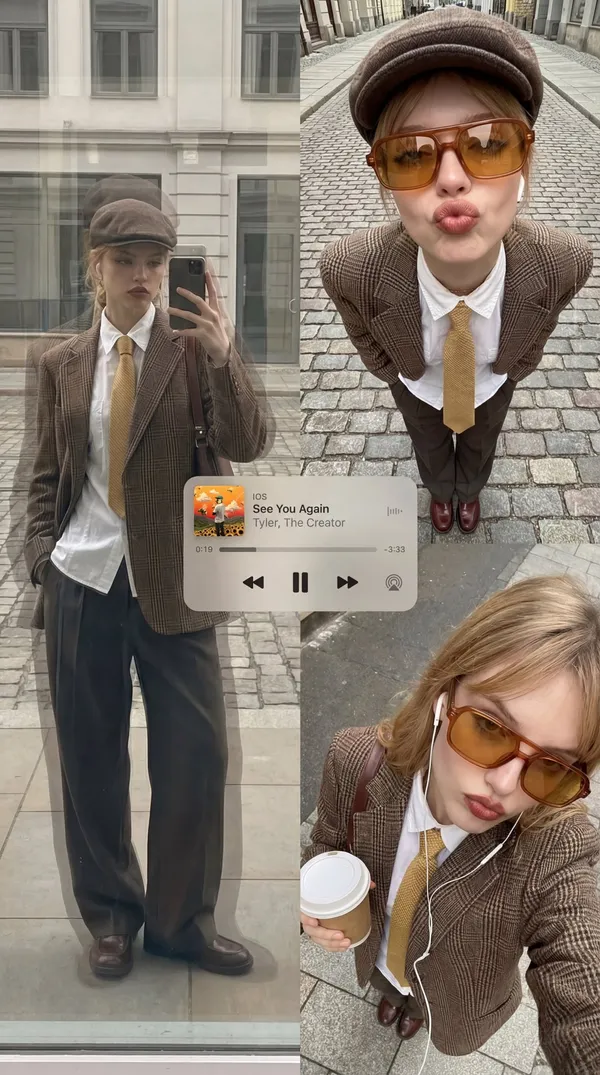
"project_title": "Urban Streetwear Editorial Collage", "aspect_ratio": "9:16", "aesthetic_theme": { "style": "Editorial poster-style multi-panel collage", "mood": "Retro analog–digital fusion", "color_palette": [ "Warm ambers", "Washed neutrals", "Soft greys", "Muted browns" ], "textures": [ "Reflective glass", "Wool plaid", "Polished leather", "Stone pavement" ] }, "subject_outfit": { "core": "Brown plaid blazer, white button-up shirt, yellow tie, loose dark trousers", "accessories": "Brown cap, oversized amber-tinted rectangular sunglasses", "tech": "Wired earphones" }, "composition_layout": { "frame_1_top_left": { "type": "Reflective window shot", "pose": "Holding phone in front of face", "visual_effects": "Layered ghosting, architectural overlays, curvature distortion" }, "frame_2_top_right": { "type": "Close-range, downward-angled ultra-wide portrait", "setting": "Cobblestone street", "pose": "Leaning forward, hands in pockets, exaggerated pout", "visual_effects": "Lens perspective distortion, radiating cobblestones" }, "frame_3_bottom_right": { "type": "Intimate overhead selfie", "lighting": "Soft overcast", "props": "Holding a drink", "overlays": "Faint digital-grid, minimal square facial-bounding graphic" } }, "ui_elements": { "music_player": { "style": "Translucent iOS-style Apple Music mini-player", "content": "“See You Again” by Tyler, The Creator", "features": "Artwork, timeline, playback controls (no shadows)" }, "graphics": "Subtle cursor-like frame lines, rectangular highlights" }, "negative_constraints": [ "Stickers", "Extra subjects", "Wardrobe changes", "Incorrect UI icons", "Neon color shifts", "Futuristic sci-fi elements" ] }
"project_title": "Urban Streetwear Editorial Collage", "aspect_ratio": "9:16", "aesthetic_theme": { "style": "Editorial poster-style multi-panel collage", "mood": "Retro analog–digital fusion", "color_palette": [ "Warm ambers", "Washed neutrals", "Soft greys", "Muted browns" ], "textures": [ "Reflective glass", "Wool plaid", "Polished leather", "Stone pavement" ] }, "subject_outfit": { "core": "Brown plaid blazer, white button-up shirt, yellow tie, loose dark trousers", "accessories": "Brown cap, oversized amber-tinted rectangular sunglasses", "tech": "Wired earphones" }, "composition_layout": { "frame_1_top_left": { "type": "Reflective window shot", "pose": "Holding phone in front of face", "visual_effects": "Layered ghosting, architectural overlays, curvature distortion" }, "frame_2_top_right": { "type": "Close-range, downward-angled ultra-wide portrait", "setting": "Cobblestone street", "pose": "Leaning forward, hands in pockets, exaggerated pout", "visual_effects": "Lens perspective distortion, radiating cobblestones" }, "frame_3_bottom_right": { "type": "Intimate overhead selfie", "lighting": "Soft overcast", "props": "Holding a drink", "overlays": "Faint digital-grid, minimal square facial-bounding graphic" } }, "ui_elements": { "music_player": { "style": "Translucent iOS-style Apple Music mini-player", "content": "“See You Again” by Tyler, The Creator", "features": "Artwork, timeline, playback controls (no shadows)" }, "graphics": "Subtle cursor-like frame lines, rectangular highlights" }, "negative_constraints": [ "Stickers", "Extra subjects", "Wardrobe changes", "Incorrect UI icons", "Neon color shifts", "Futuristic sci-fi elements" ] }
Verified prompt
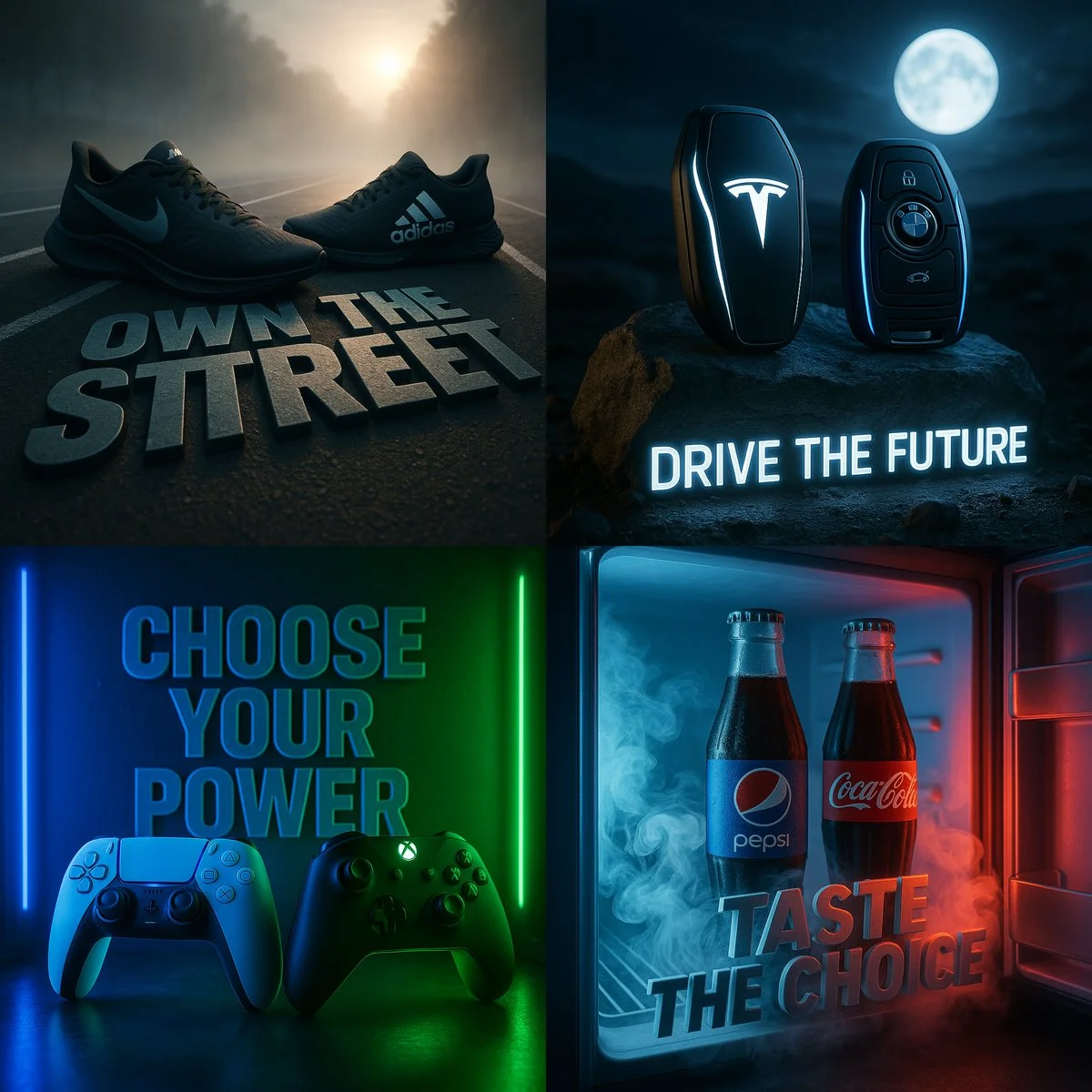
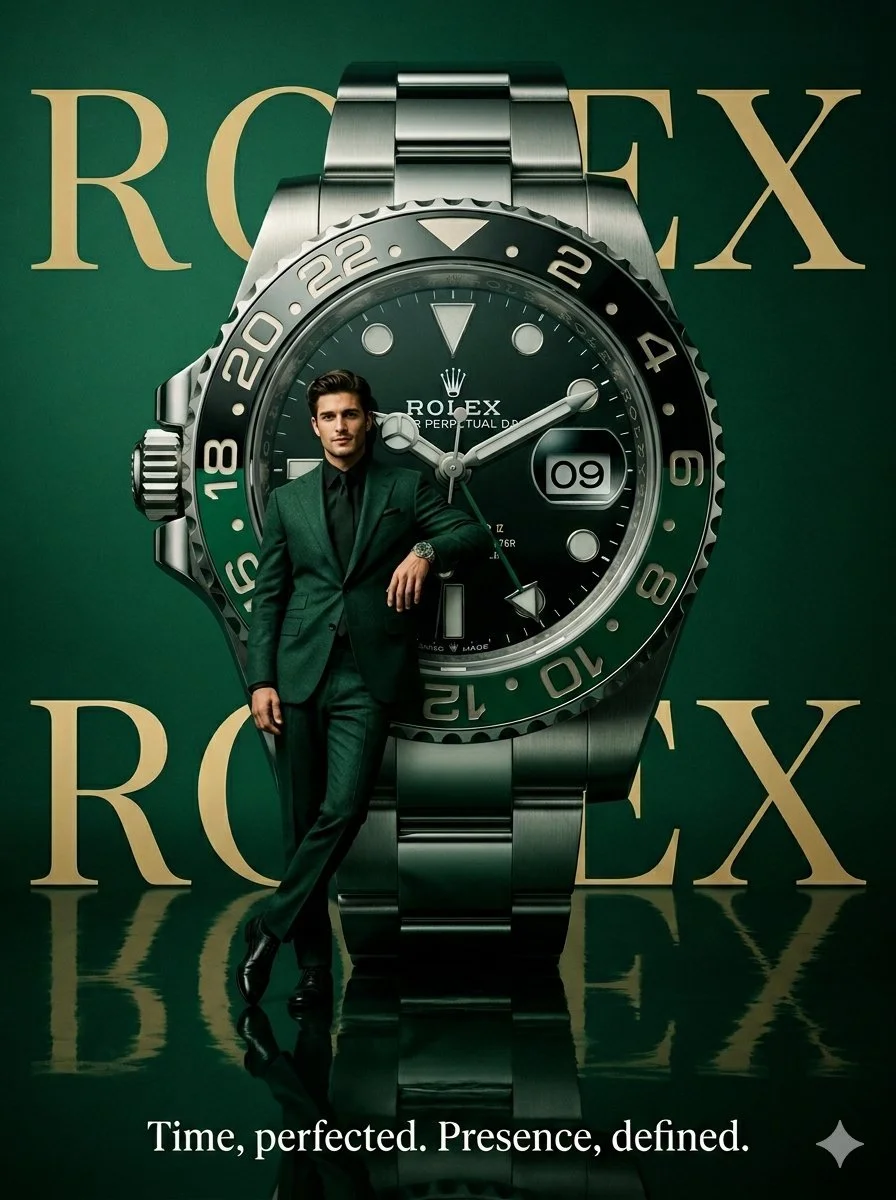
A dramatic cinematic scene featuring two rival products placed side by side in a custom-designed environment that visually reflects their identities. The composition should include high contrast lighting, atmospheric effects like mist, fog, or neon glow, and hyper-detailed textures. Incorporate a powerful 3D slogan below or behind the products in bold stylized typography that fits the scene’s mood. The products must reflect the essence of [Brand A] and [Brand B] through color, lighting, and placement. Ultra-realistic, moody tones, 1:1 square format, with sharp depth of field and high resolution.
A dramatic cinematic scene featuring two rival products placed side by side in a custom-designed environment that visually reflects their identities. The composition should include high contrast lighting, atmospheric effects like mist, fog, or neon glow, and hyper-detailed textures. Incorporate a powerful 3D slogan below or behind the products in bold stylized typography that fits the scene’s mood. The products must reflect the essence of [Brand A] and [Brand B] through color, lighting, and placement. Ultra-realistic, moody tones, 1:1 square format, with sharp depth of field and high resolution.
Verified prompt
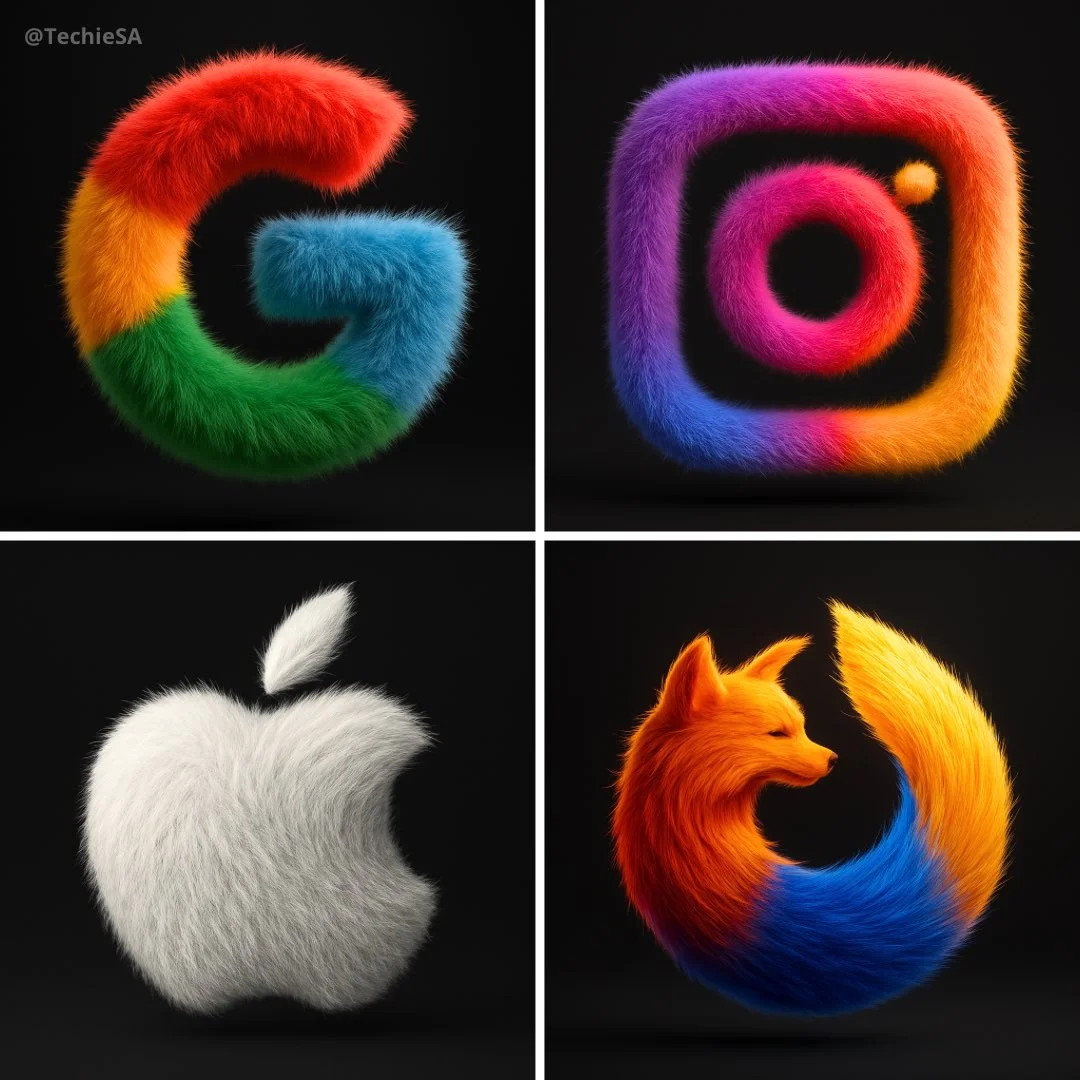
Transform the [BRAND NAME] logo into a hyper-realistic, 3D fluffy object. Keep the original shape and exact brand colors. Cover the entire surface in soft, detailed fur with a realistic hair texture. Use cinematic lighting to create subtle backlighting and soft shadows, making the logo appear tactile and surreal. Place the logo in the center of a clean black background, floating gently with a modern, stylish look. The style should feel cozy, playful, and visually striking. Render in ultra-high 4K resolution with photorealistic quality.
Transform the [BRAND NAME] logo into a hyper-realistic, 3D fluffy object. Keep the original shape and exact brand colors. Cover the entire surface in soft, detailed fur with a realistic hair texture. Use cinematic lighting to create subtle backlighting and soft shadows, making the logo appear tactile and surreal. Place the logo in the center of a clean black background, floating gently with a modern, stylish look. The style should feel cozy, playful, and visually striking. Render in ultra-high 4K resolution with photorealistic quality.
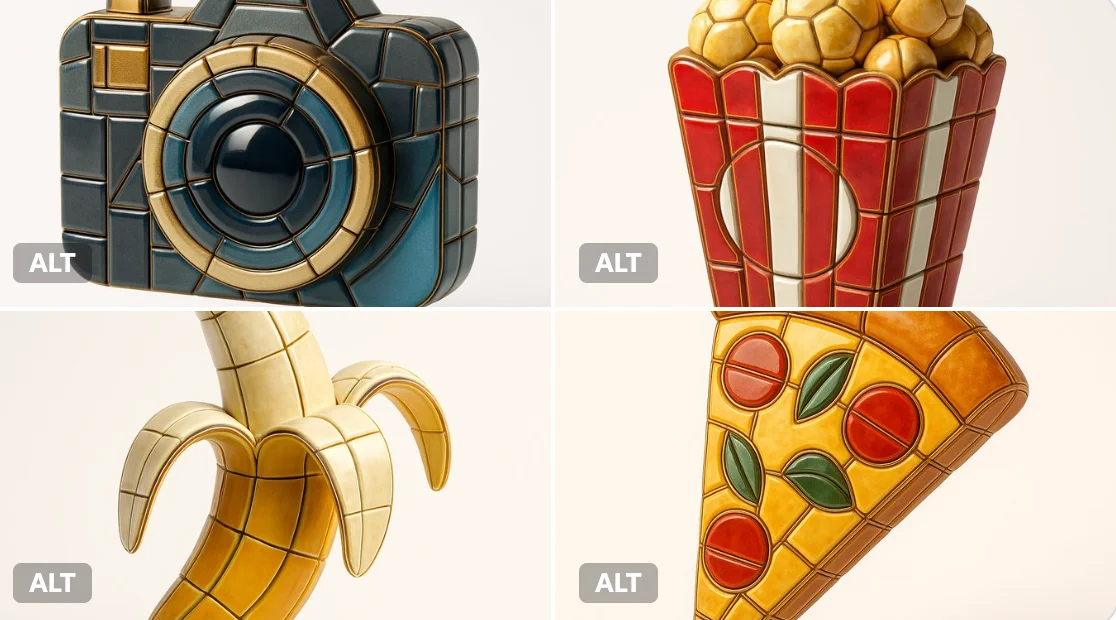
Verified prompt
Visualize any selected emoji [] as an ultra-detailed, hyper-realistic 3D sculpture fully composed of luxurious enamel mosaic tiles. The emoji should retain its iconic silhouette and proportions, reinterpreted as a stylized 3D figure made entirely from curved, faceted, and geometrically interlocked enamel tiles in a radiant mosaic pattern. > Use high-gloss enamel tiles in varied shades derived from the emoji’s symbolic palette—integrating metallic accents, opalescent glazes, deep ceramic pigmentation, and subtle iridescence. Tile surfaces must exhibit gentle bevels, crisp joints, and tactile depth to emulate elite architectural mosaic work. > Ensure no visible support structures—the figure must appear freestanding and weightless, suspended mid-air at the exact center of the frame. > Background: pure white studio environment with soft ambient shadows directly beneath the sculpture to emphasize spatial presence and floating realism. > Lighting: cinematic, diffused from multiple angles to
Visualize any selected emoji [] as an ultra-detailed, hyper-realistic 3D sculpture fully composed of luxurious enamel mosaic tiles. The emoji should retain its iconic silhouette and proportions, reinterpreted as a stylized 3D figure made entirely from curved, faceted, and geometrically interlocked enamel tiles in a radiant mosaic pattern. > Use high-gloss enamel tiles in varied shades derived from the emoji’s symbolic palette—integrating metallic accents, opalescent glazes, deep ceramic pigmentation, and subtle iridescence. Tile surfaces must exhibit gentle bevels, crisp joints, and tactile depth to emulate elite architectural mosaic work. > Ensure no visible support structures—the figure must appear freestanding and weightless, suspended mid-air at the exact center of the frame. > Background: pure white studio environment with soft ambient shadows directly beneath the sculpture to emphasize spatial presence and floating realism. > Lighting: cinematic, diffused from multiple angles to
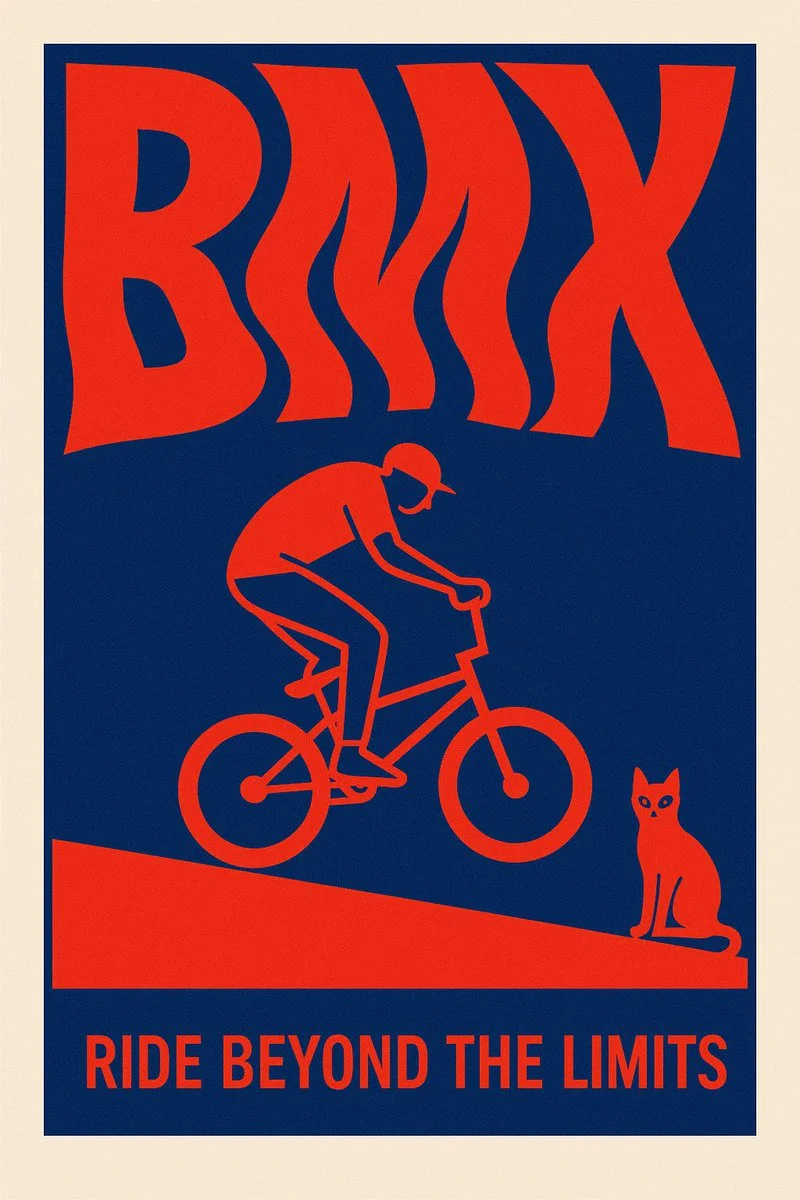
Verified prompt
Create a surreal 2D poster design based on the word “[KEYWORD]” — the layout should be dominated by kinetic typography where the word is visually shaped or distorted to reflect its meaning — integrate a symbolic flat minimal illustration that reinforces the concept — the style must be inspired by risograph print: only 2 bold contrasting colors (no gradients) — include a poetic, short quote that resonates emotionally with the keyword — background must be clean and minimal — composition must be vertical, with strong visual impact and artistic balance — the overall tone should feel cinematic, surreal, and graphic — ultra-sharp, high-resolution, no clutter
Create a surreal 2D poster design based on the word “[KEYWORD]” — the layout should be dominated by kinetic typography where the word is visually shaped or distorted to reflect its meaning — integrate a symbolic flat minimal illustration that reinforces the concept — the style must be inspired by risograph print: only 2 bold contrasting colors (no gradients) — include a poetic, short quote that resonates emotionally with the keyword — background must be clean and minimal — composition must be vertical, with strong visual impact and artistic balance — the overall tone should feel cinematic, surreal, and graphic — ultra-sharp, high-resolution, no clutter
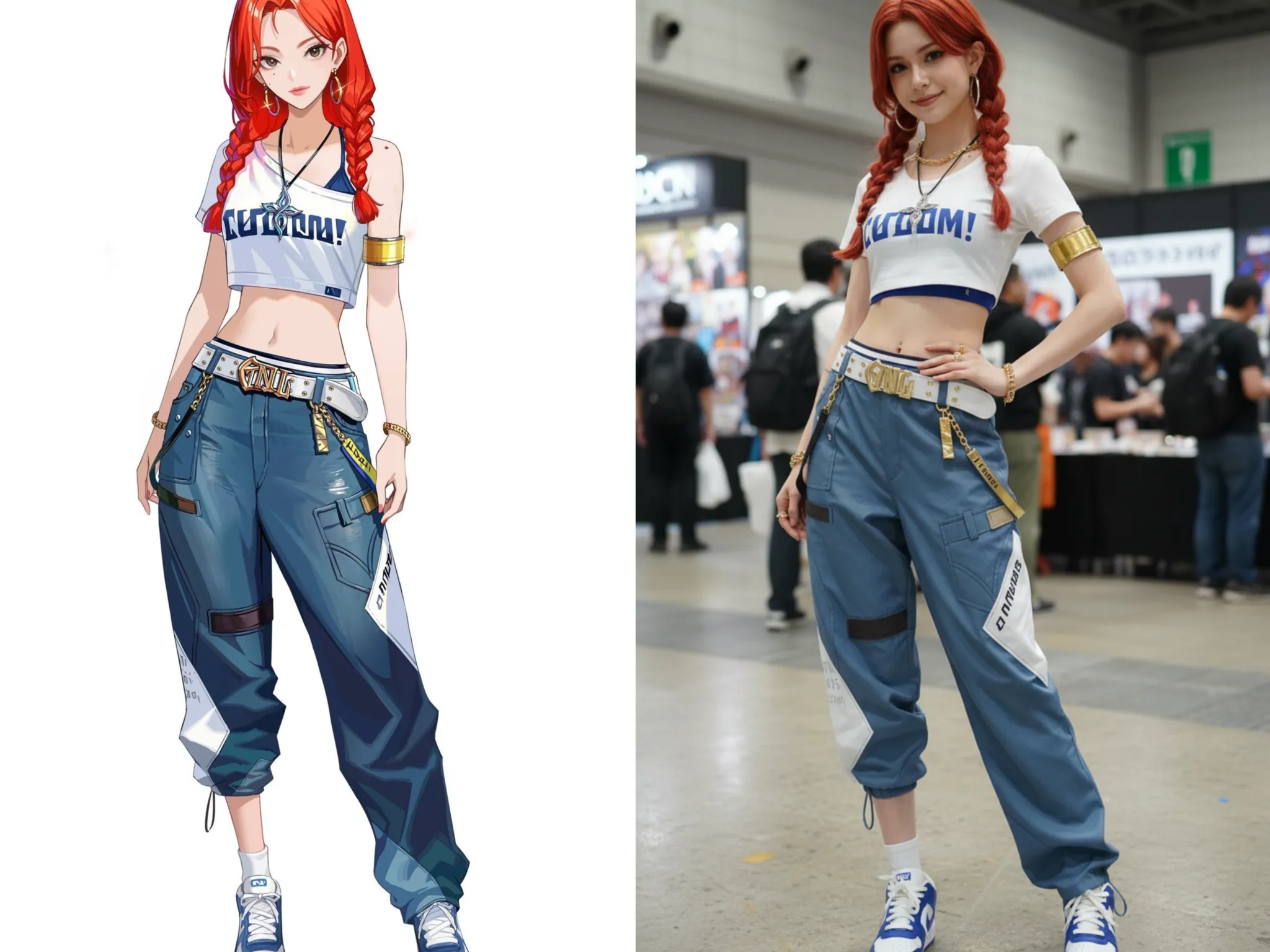
Verified prompt
Generate a highly detailed photo of a human cosplaying this illustration, at Comiket. Exactly replicate the same pose, body posture, hand gestures, facial expression, and camera framing as in the original illustration. Keep the same angle, perspective, and composition, without any deviation
Generate a highly detailed photo of a human cosplaying this illustration, at Comiket. Exactly replicate the same pose, body posture, hand gestures, facial expression, and camera framing as in the original illustration. Keep the same angle, perspective, and composition, without any deviation
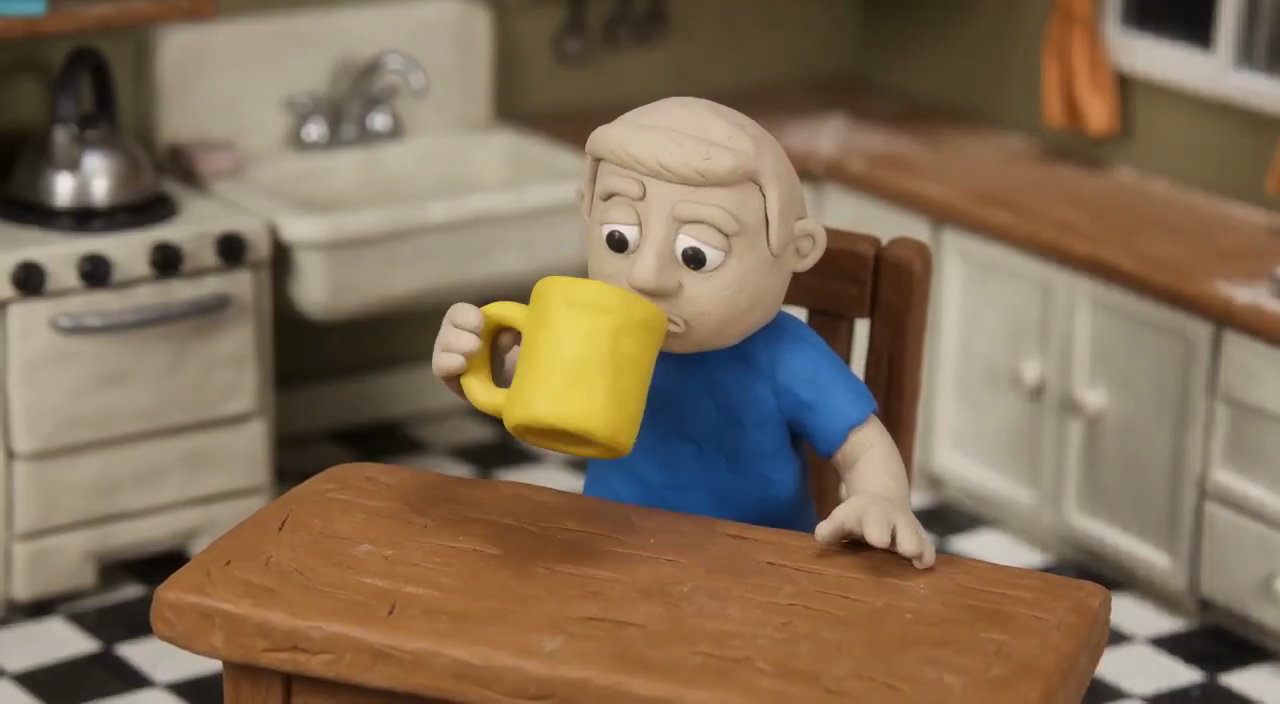
Verified prompt
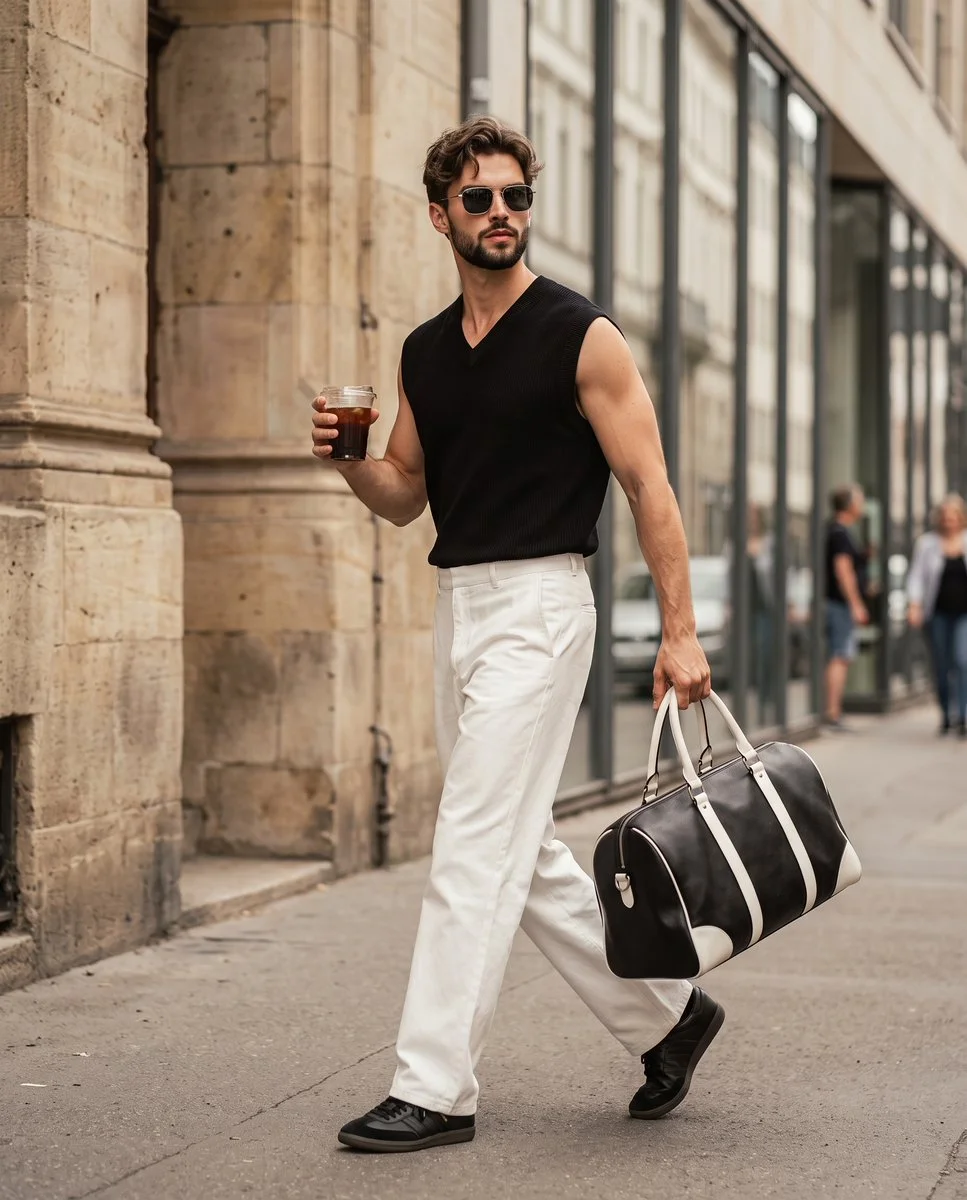
Verified prompt
Create a candid fashion photograph of an adult man walking along a European-style stone street. Dress him in a black sleeveless knit top, wide white trousers, dark sneakers and sunglasses. Have him carry an iced coffee in one hand and a large black-and-white duffel bag in the other. Capture a natural mid-stride pose beside textured pale stone facades and reflective shop windows. Use soft daylight, restrained black-white-beige colors and a gently blurred background. Keep the clothing folds, bag handles and pavement details believable.
Create a candid fashion photograph of an adult man walking along a European-style stone street. Dress him in a black sleeveless knit top, wide white trousers, dark sneakers and sunglasses. Have him carry an iced coffee in one hand and a large black-and-white duffel bag in the other. Capture a natural mid-stride pose beside textured pale stone facades and reflective shop windows. Use soft daylight, restrained black-white-beige colors and a gently blurred background. Keep the clothing folds, bag handles and pavement details believable.
Plan Your Music Visuals
Create an image, animate a scene or find a starting prompt for your project.
Create visuals with Grok in RapLyrics
A Grok image generator for music visual projects.
Use RapLyrics to turn text prompts into images with the Grok models currently enabled in the generator. You can also check whether the selected model supports image-reference or editing modes. The generator shows the allowed inputs, settings, and credit quote before you generate. Review each result and download clips from History to use in your external editor with your own music and timed lyric overlays.
Open the generator
How to use the Grok generator
The workflow is simple. Choose an enabled model, enter a text prompt, and add an image reference only if the selected model offers that mode. The generator shows the allowed inputs and settings before you generate, and the credit quote appears before each run.
Enter a prompt or add a reference
Describe the subject, setting, lighting, and mood in your prompt. If the selected model supports image-reference mode, you can add an image to guide style, subject, or composition. Availability and capabilities vary by model, so check the options shown in the generator.
Click generate
Review the credit quote and generate
Download
Review the credit quote, then start generation. Available settings and input options are shown in the generator. When generation finishes, review the results and download the clips you want from History. Add your own music and timed lyric overlays in an external editor.
Core features
The Grok models available in RapLyrics support text-to-image generation and may support image-reference or editing modes depending on the model. Allowed inputs, settings, and the credit quote are shown in the generator before you run. Finished outputs are listed in History for review and download.
Text-to-image creation
The Grok image generation turns text prompts into images. Check the selected model for available styles and settings.
- Use the Grok models in RapLyrics to generate images from text prompts. The generator shows the allowed inputs and settings for each model.
- The Model options vary by model. Check the generator for supported inputs, reference image modes, and settings before you generate.Text-to-image generation.
- Generate visuals for music projects and review them before use. Download clips from History and add your own music and timed lyric overlays in an external editor.Grok image generation in RapLyrics.
- Use this image prompt workflow to turn a clear idea into a visual by describing what you want to see.
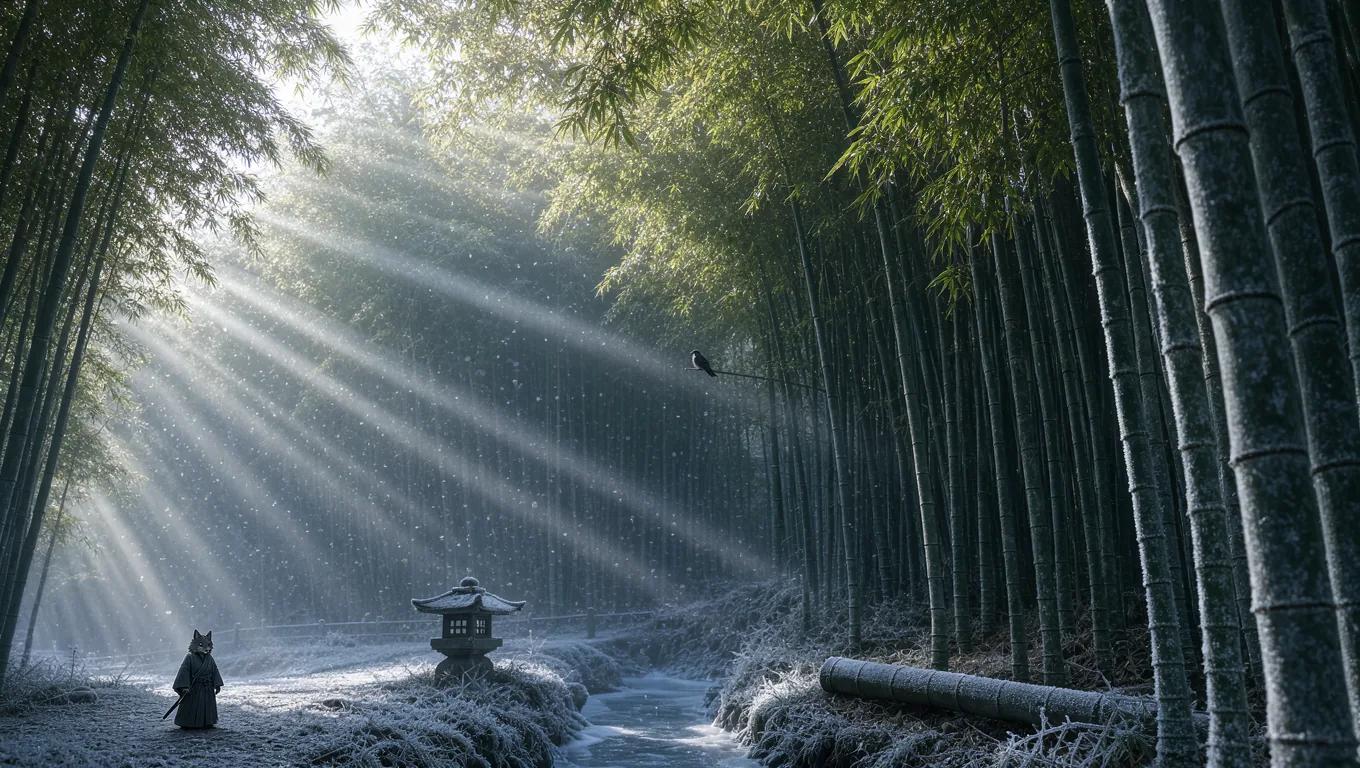
Prompt-based image editing
The Grok image generation editing workflow can help you revise existing visuals.
- Upload an image and use the Grok models in RapLyrics prompt to describe the changes you want.
- The Model optionsThis editing workflow can help you adjust colors, replace objects, or change backgrounds.
- Use the Prompt-based editing lets you refine details without advanced editing software or manual retouching.
- This Grok image generation in RapLyricsIterate on visual assets by describing what you want to change.
Reference image guidance
Guide the output with the image generator’s reference image options.
- The Grok models in RapLyrics by uploading reference images to guide subject, style, colors, product details, and scene direction, if your selected model offers image-reference input.
- With Model optionsUsing references can reduce guesswork when the reference image option is available.
- Support a consistent look by using the Grok image generation in RapLyrics reference image option to align with the aesthetic of your provided references, when offered by the selected model.
- This is useful for a cohesive look when using the image generator for project visuals.
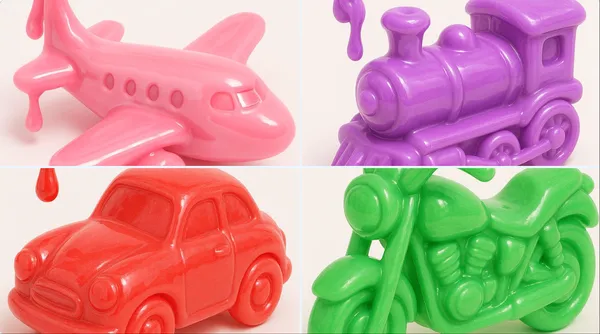
Multiple visual directions
Explore different visual directions with the Grok image generation.
- The Grok models in RapLyricsCreate multiple image ideas faster without manual design skills.
- Use Model optionsGenerate multiple image variations for ads, social posts, product mockups, thumbnails, and visual testing.
- The Grok image generation in RapLyricsThe available models offer a range of options, making them suitable forsocial media visuals with RapLyrics.
- Compare styles and compositions to find what fits your project using theimage generator in RapLyrics.
Why use this image generator?
This image generator helps with common visual content tasks. It is built for speed, ease of use, and practical application. If you need a tool that prioritizes utility over complexity, this is for you. Here is what it offers for daily use.
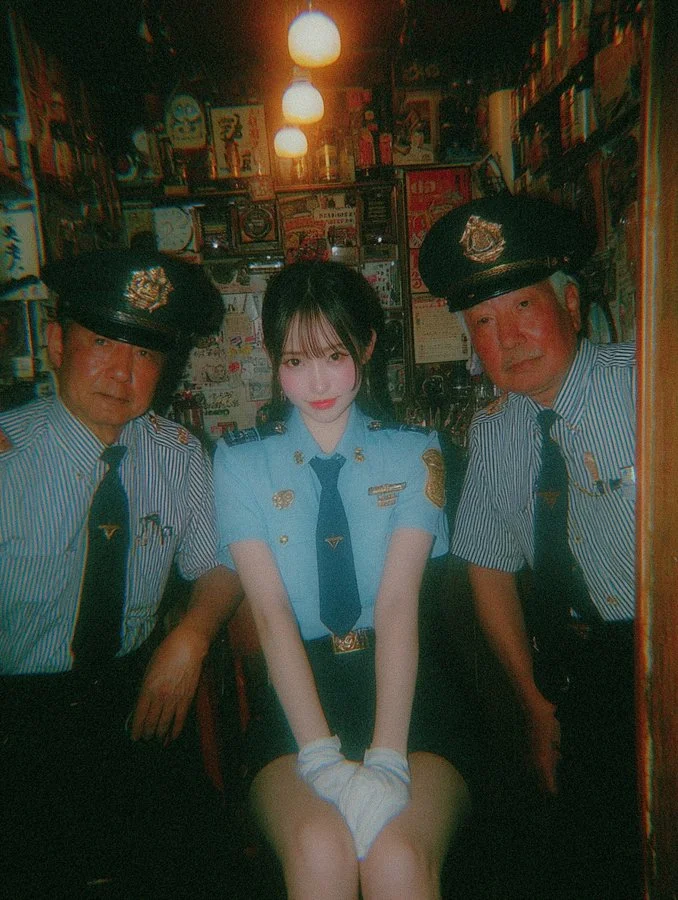
Skip Complex Software
You do not need to spend hours learning complicated design software. TheGrok image generationgenerator allows fast image generation without manual retouching, complex editing software, or advanced design skills. Just use thegenerator in RapLyricsto get what you need.
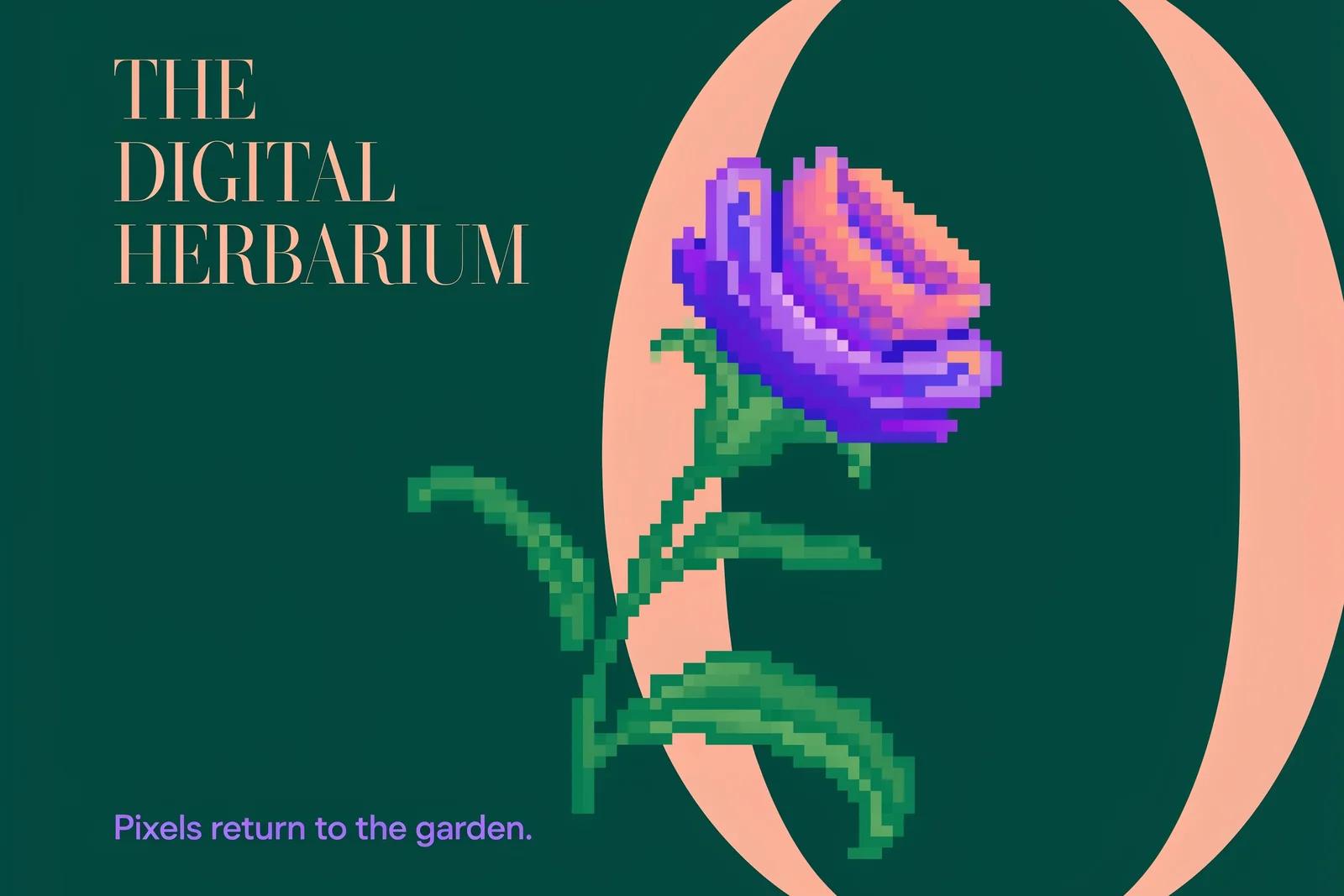
Turn Ideas into Visuals
Turn abstract ideas into usable visuals, not just vague inspiration. TheModel optionssystem turns text prompts into images quickly, making it a practicalchoice for creative ideas in RapLyrics.
Reduce Randomness
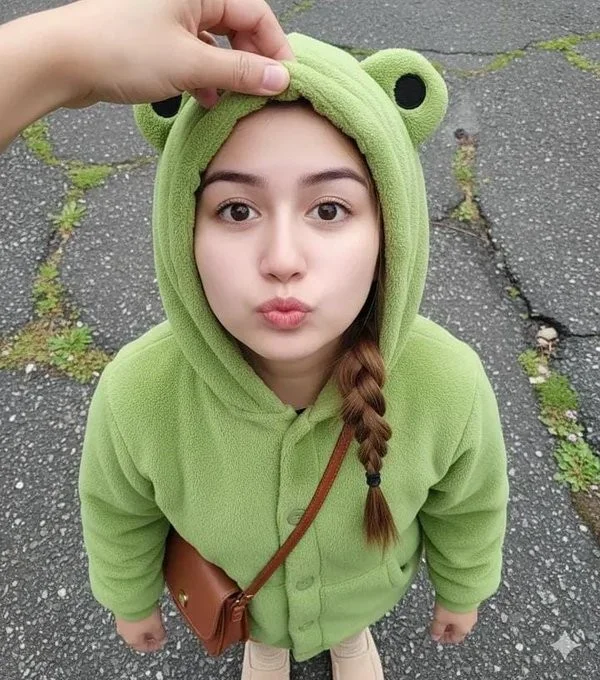
When generating images, control matters. By using theimage generator’s reference image options, you can guide the subject, style, product look, and scene composition. This reduces randomness and makes theGrok image generation in RapLyricsmore dependable.
Built for Marketing and Social
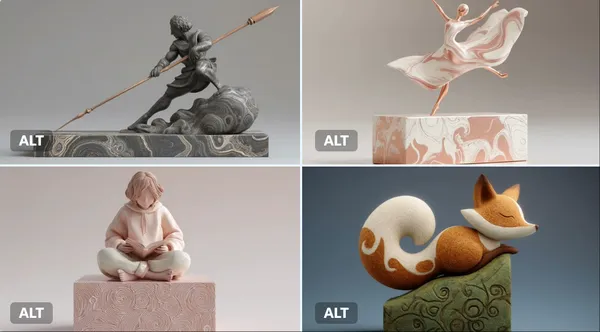
You need multiple variations fast. TheGrok image generationis useful for generating product mockups, social media visuals, ad creatives, thumbnails, posters, and creative references. It is a practicalchoice for adsand social media campaigns.
Easy Natural-Language Editing
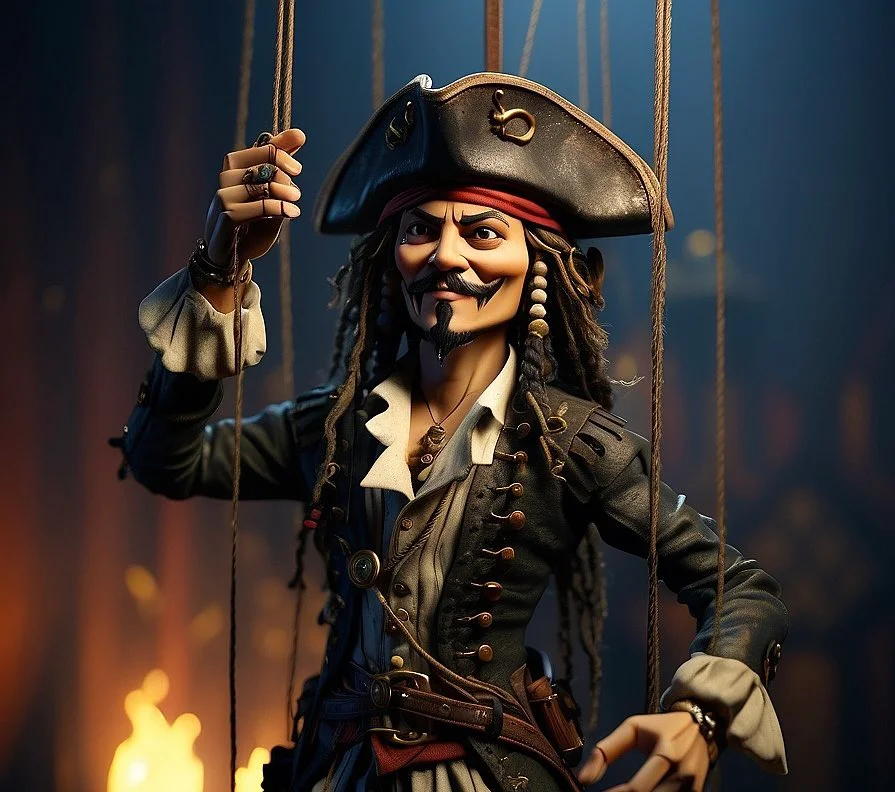
Instead of manual erasing and painting, you can edit with text. Inside theGrok image generation, theGrok models in RapLyrics supports editing uploaded images with plain-language instructions, which can help with the Prompt-based editing step for music visual work.
Workflow Notes
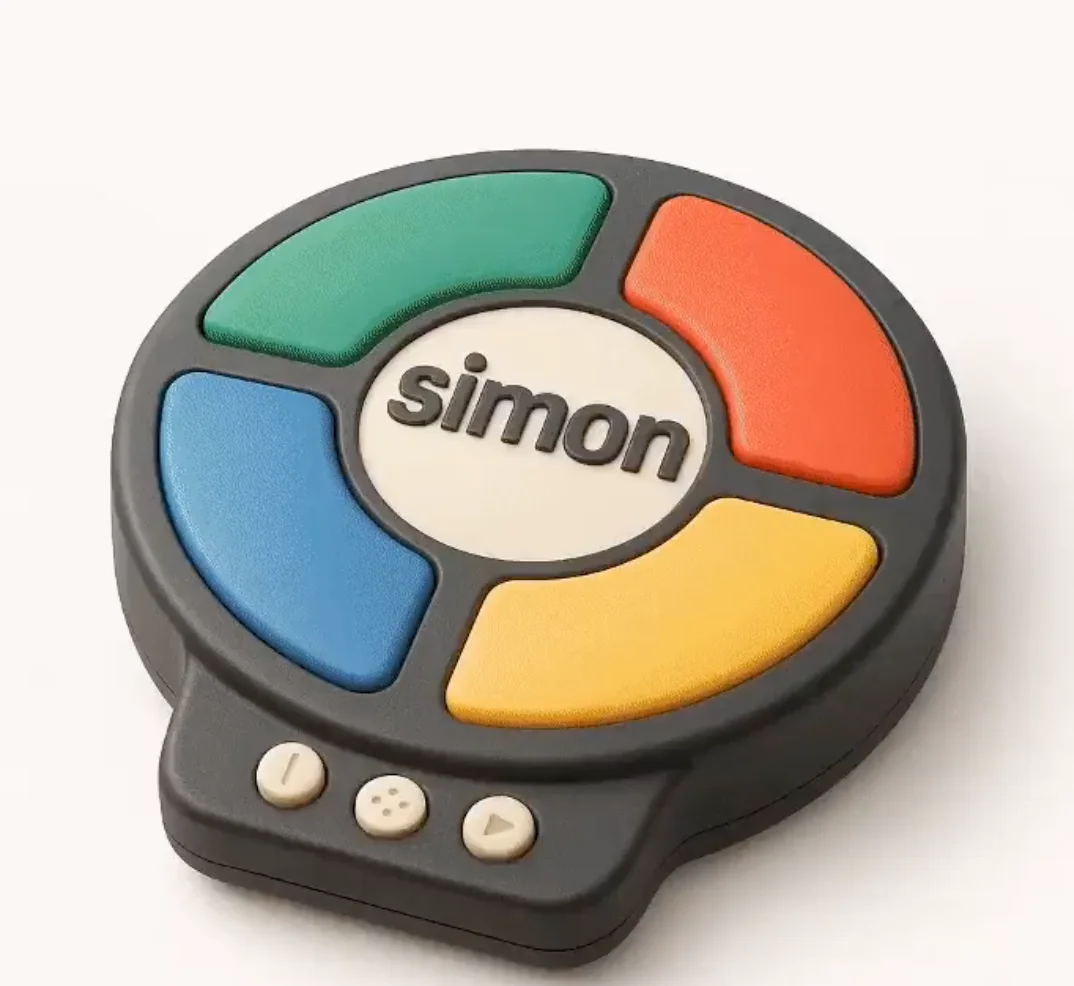
Speed up early visual drafts with the Grok image generation by generating several image options from a prompt before you move to video. Check the model options for supported reference-image modes, then use the Grok models in RapLyrics to review the credit quote and download clips from History for editing in your own editor.
Workflow Notes
Describe one subject, action and setting before generating. Keep the brief focused so the result is easier to review.

Questions about music visual workflows
Quick answers about generating visual clips with RapLyrics, checking model options, reviewing credits, and moving finished output into your editor.
RapLyrics helps you generate image or video clips from text prompts using the currently enabled models in the generator. You can review and download finished clips from History, then add music and timed lyric overlays in an external editor.
Open the generator, choose from the currently enabled models, and enter a text prompt. Check the allowed inputs and settings shown there, review the credit quote before generating, and find finished output in History.
Some models offer supported image-reference modes. Check the selected model in the generator to see whether reference images are available and what inputs are allowed. Model-specific availability is not verified outside the generator.
The current credit quote is shown before generation. Review that quote so you know the cost for the selected model and settings before you start.
Finished output is in History. Review each generated clip, then download the visuals you want to use in your own editor with music and lyric timing.
No. Download visual clips and add your own music and timed lyric overlays in an external editor. RapLyrics does not provide automatic lyric synchronization.
Check the selected model to confirm allowed inputs, settings, and any supported options. Review the credit quote shown before generation. After generation, review the output in History before using it.
No. Generated visuals must be reviewed. No guaranteed quality, speed, character consistency, perfect text, or precise motion is offered. Check whether the selected model offers any advanced controls before you rely on them.
You can request a refund within 10 days of purchase if you have unused credits from that purchase and provide a clear reason, subject to our Refund Policy. If eligible, an unused purchase can be fully refunded; a partly used purchase is refunded in proportion to its remaining unused credits. Fully used purchases and free or promotional credits are not refundable.
Credit validity depends on the pack, subscription or promotion that issued them. Review the purchase terms and expiration dates in Settings > Credits. A renewal or new purchase does not extend older credits. Use credits before their stated expiration; do not assume unused subscription credits roll over indefinitely.
Credits charged for a task that is confirmed as failed due to a system error are returned automatically. A task that is still processing has not yet been confirmed as failed. Check its status and your credit history before submitting again. If a confirmed failure still shows an unresolved charge, email support@raplyrics.app with the task ID.
AI results can vary, so a completed result that differs from your expectations is not automatically treated as a technical failure. Eligible completed image tasks can be submitted for credit refund review using the refund option where available; approval is required. For a video or another issue, contact support@raplyrics.app with the task ID and details. A credit refund returns credits, not money to your payment method.
Email support@raplyrics.app. For billing, include your account email and order ID; for generation, include the task ID, issue description and relevant screenshots. If you purchased as a guest, keep the original browser data and payment receipt so we can help locate the purchase.
Generate your first visual with RapLyrics
Create images from text prompts with the Grok model family. Describe a scene, upload an image to edit with natural-language instructions, or use a reference image to guide style and composition. The generator shows available inputs and settings; the credit quote appears before generation, and finished output is in History. Review results before use.
raplyrics.app · Updated
What's new on this page
- — Corrected the default model selection for the Grok image generator. Added editable example prompts and separate drafts for text and reference modes, with an action to restore the example.
- — Page content published.